NSE Installation and Initialization
Activating NSE is the process of binding the SN of NSE to the controller site. The configuration method is as follows:
URL activation
The configuration steps are as follows:
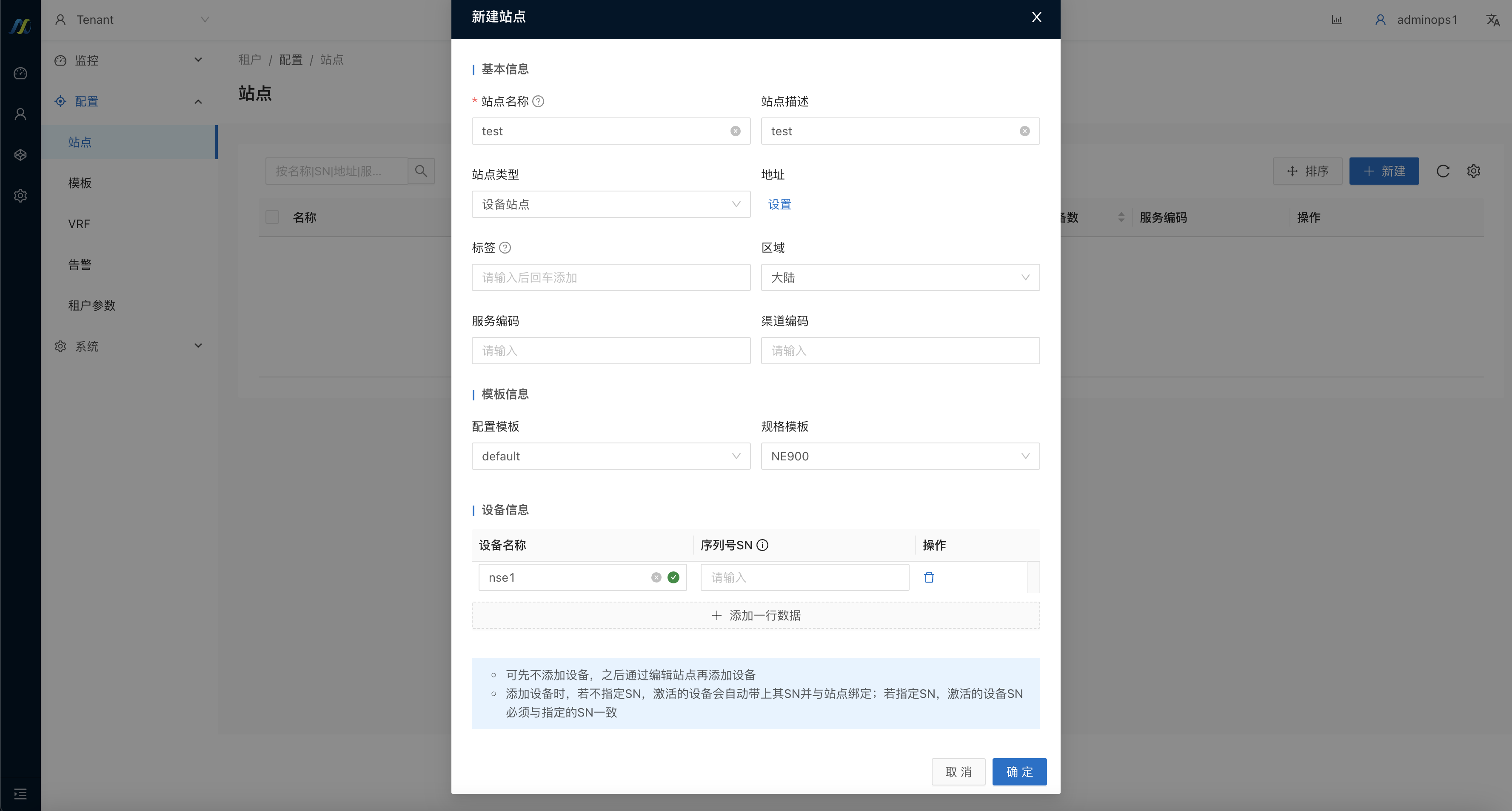
1) Create a site and fill in the device name without filling in the serial number;
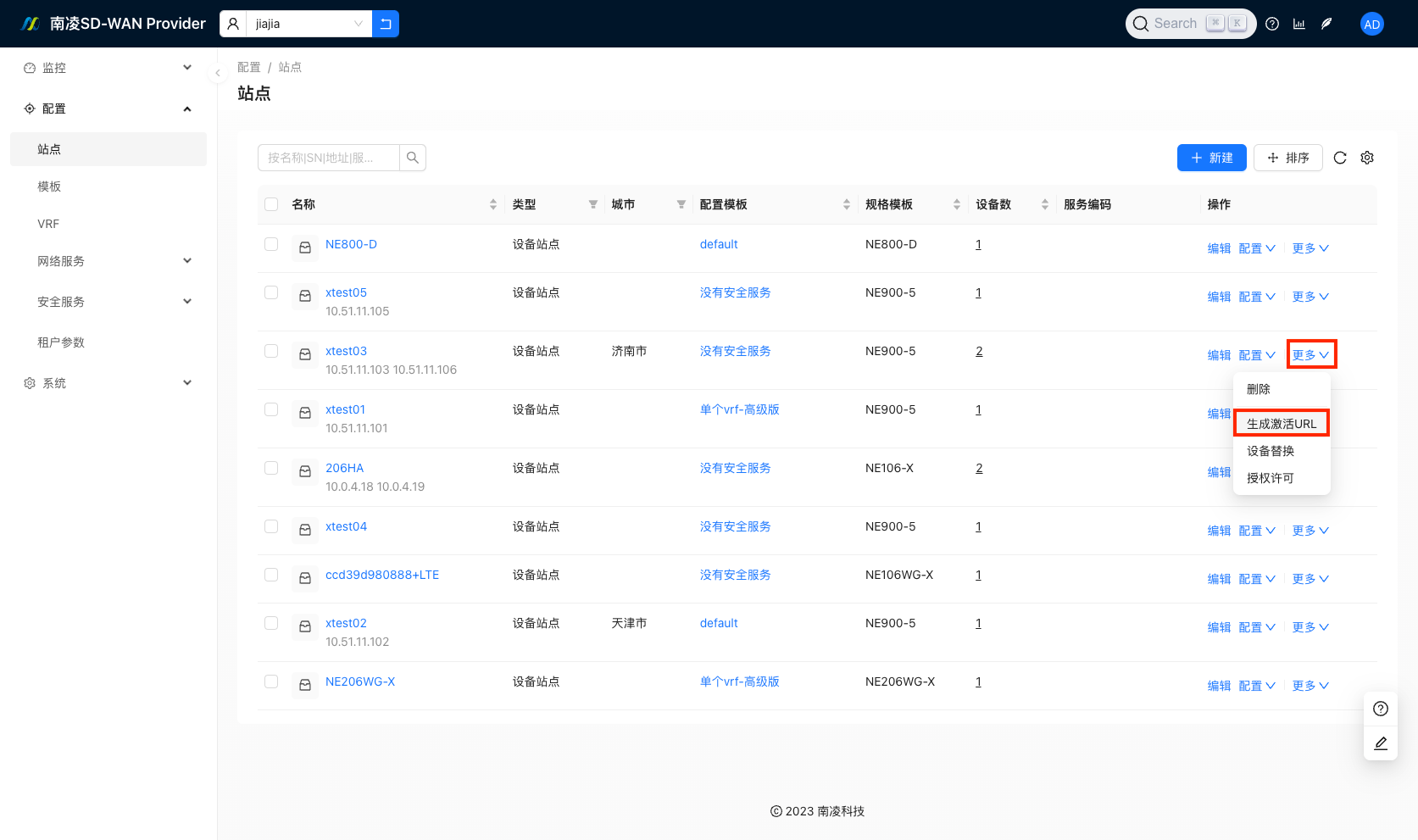
2) Select the site, click "More" to create [Generate activation URL];
3) Connect the laptop to the MGMT port of the NSE using a network cable;
4) The MGMT port IP of NSE is fixed 192.168.41.1/24, so the laptop network card needs to be configured with an IP in the same network segment as it, and pinged to ensure its connectivity;
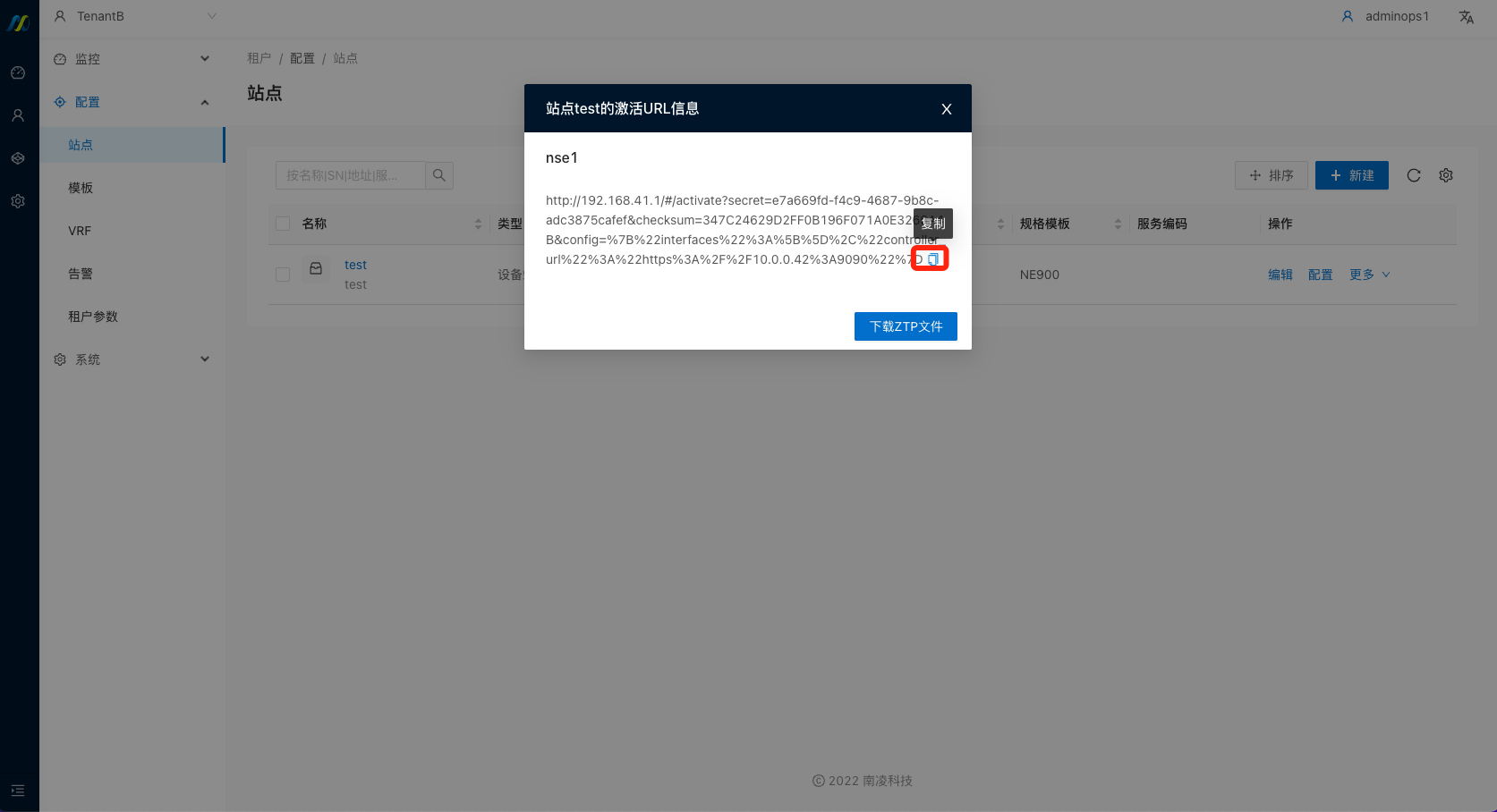
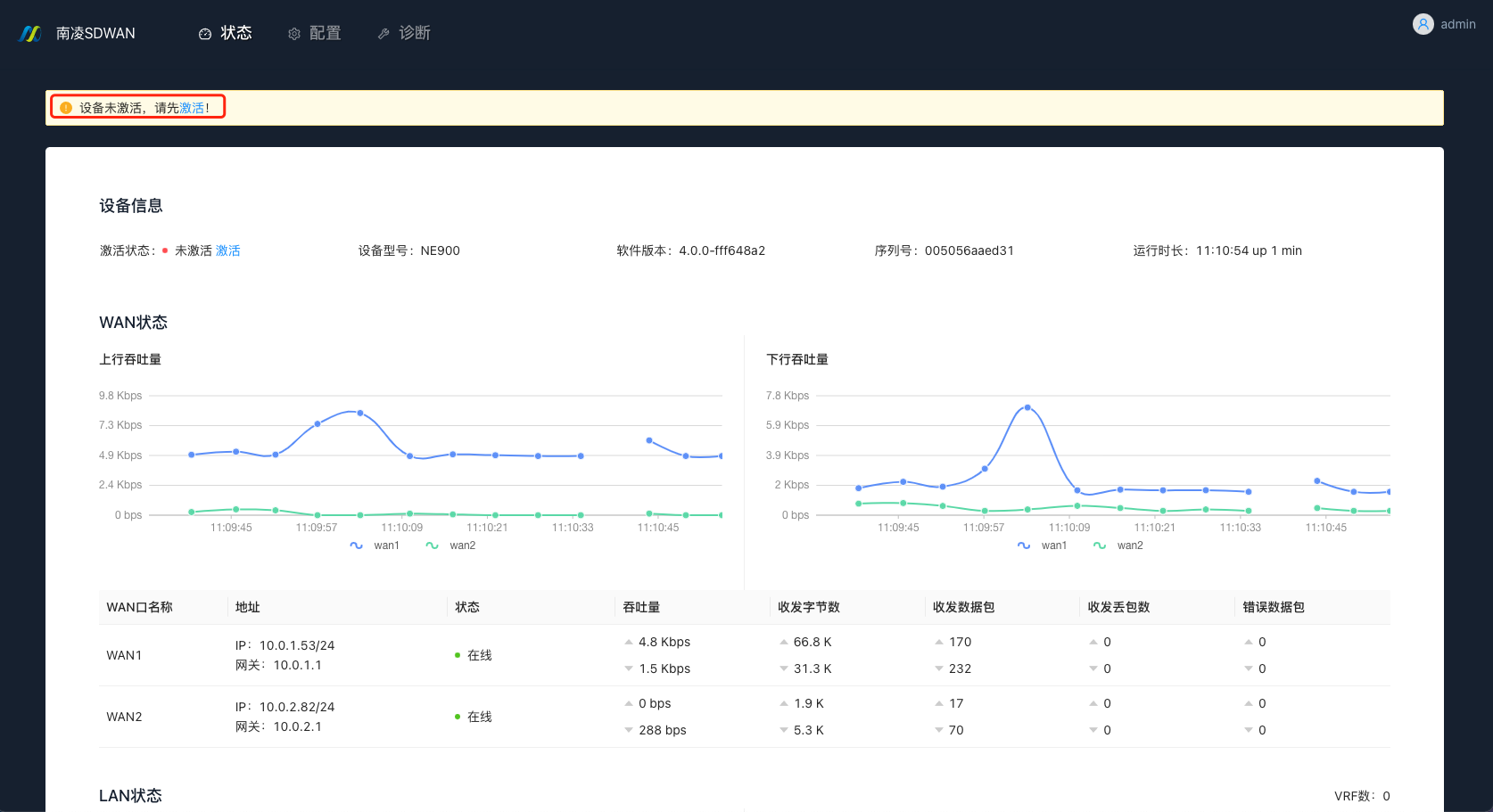
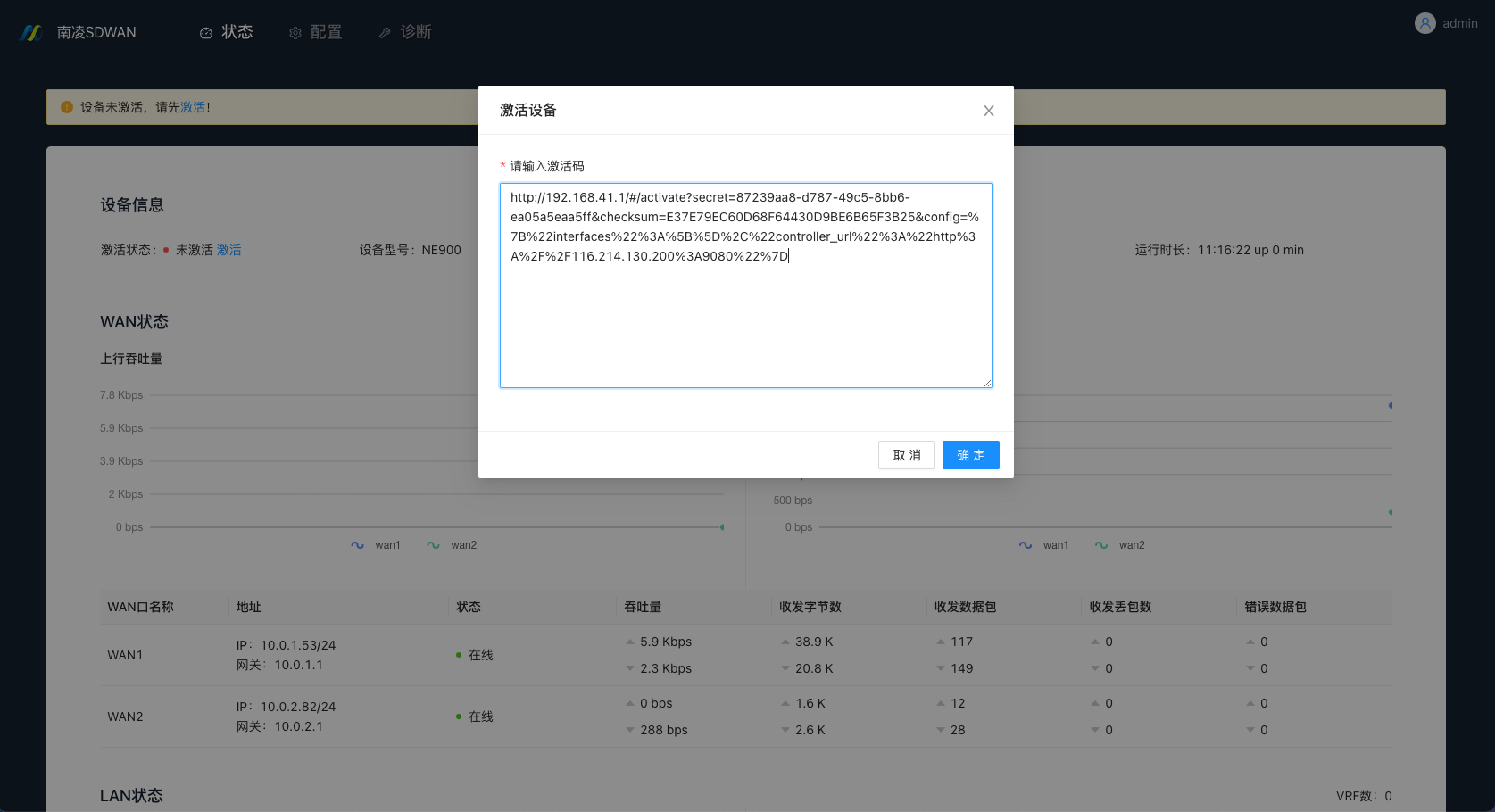
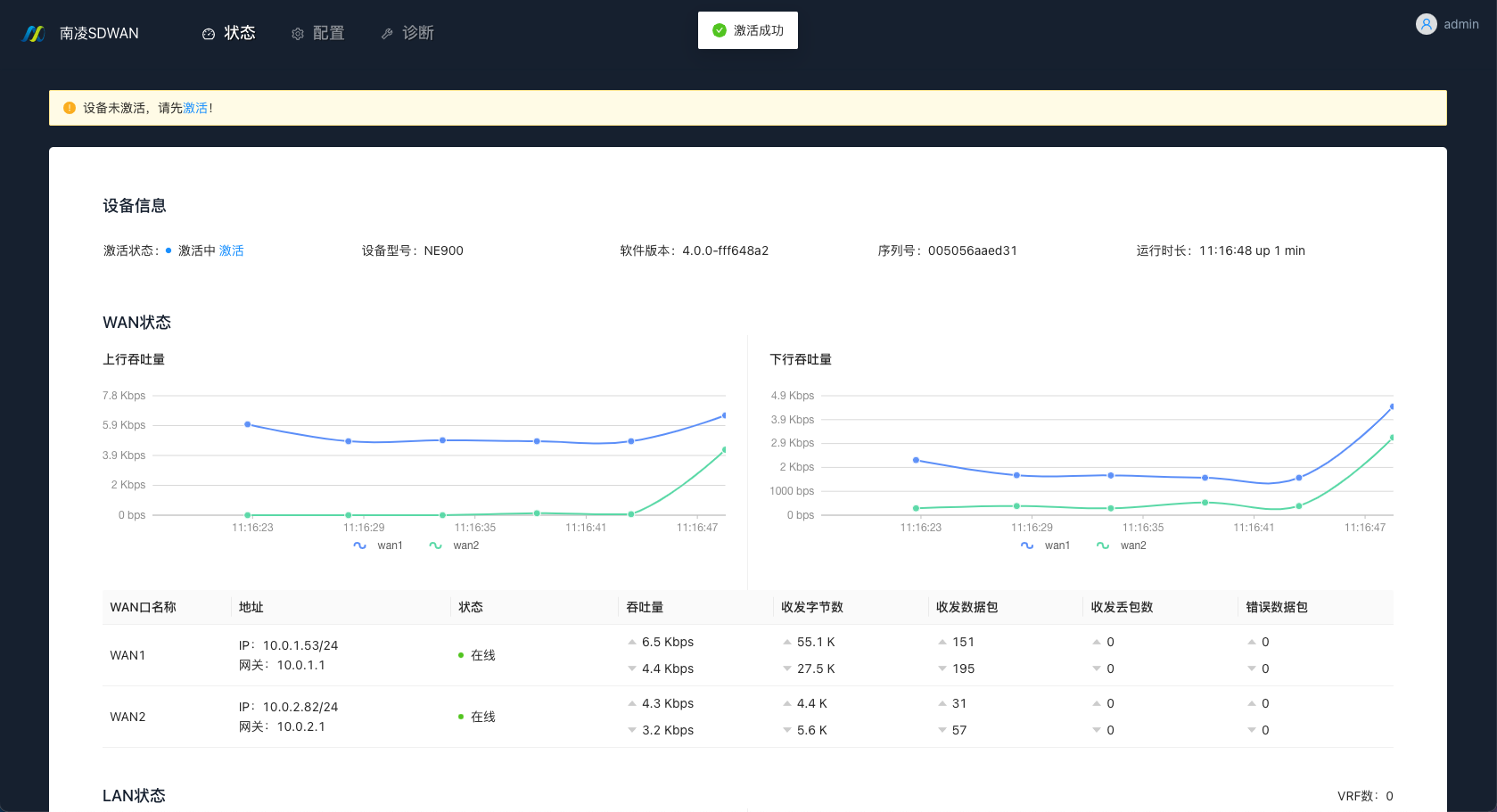
5) Copy the activation code to the laptop browser to activate NSE, or enter the NSE's MGMT port IP in the browser and enter Device Manager for activation. (Default account password: admin/admin)
Manual activation
The configuration steps are as follows:
1) Create a site and fill in the device name and serial number;
2) Use a laptop to open NSE’s Device Manager;
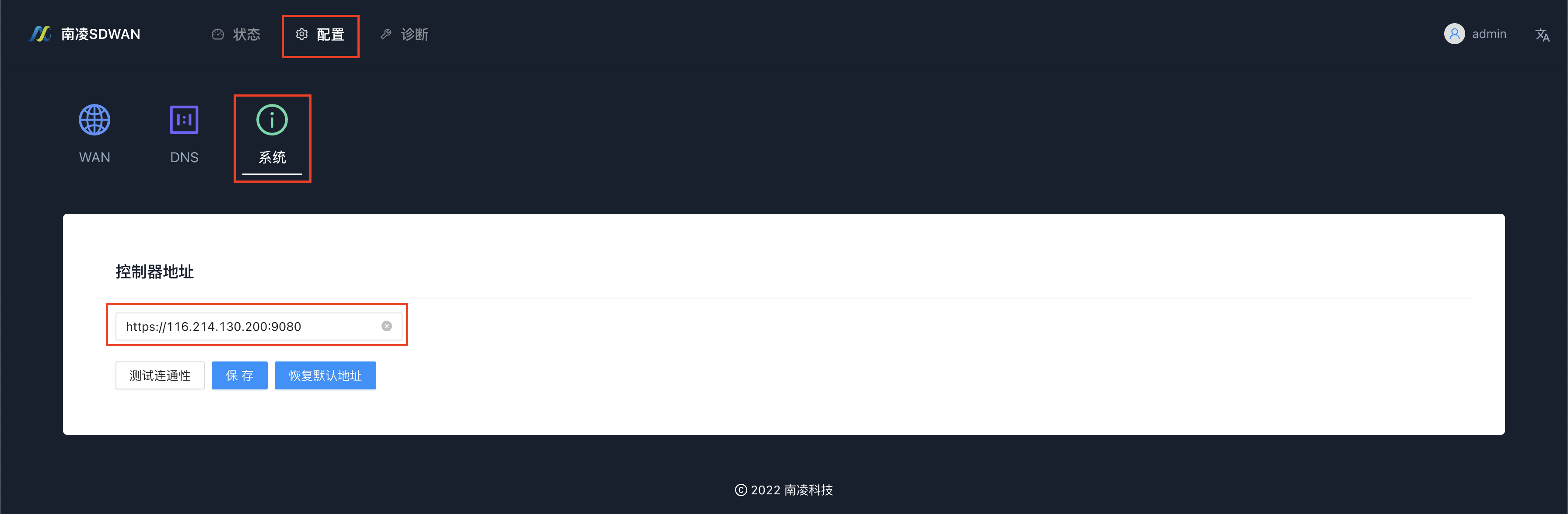
3) Check whether the controller address is correct: "Config"→"System"→"Controller Address"(https://nsc.nova.net.cn:9090)
4) Complete binding.
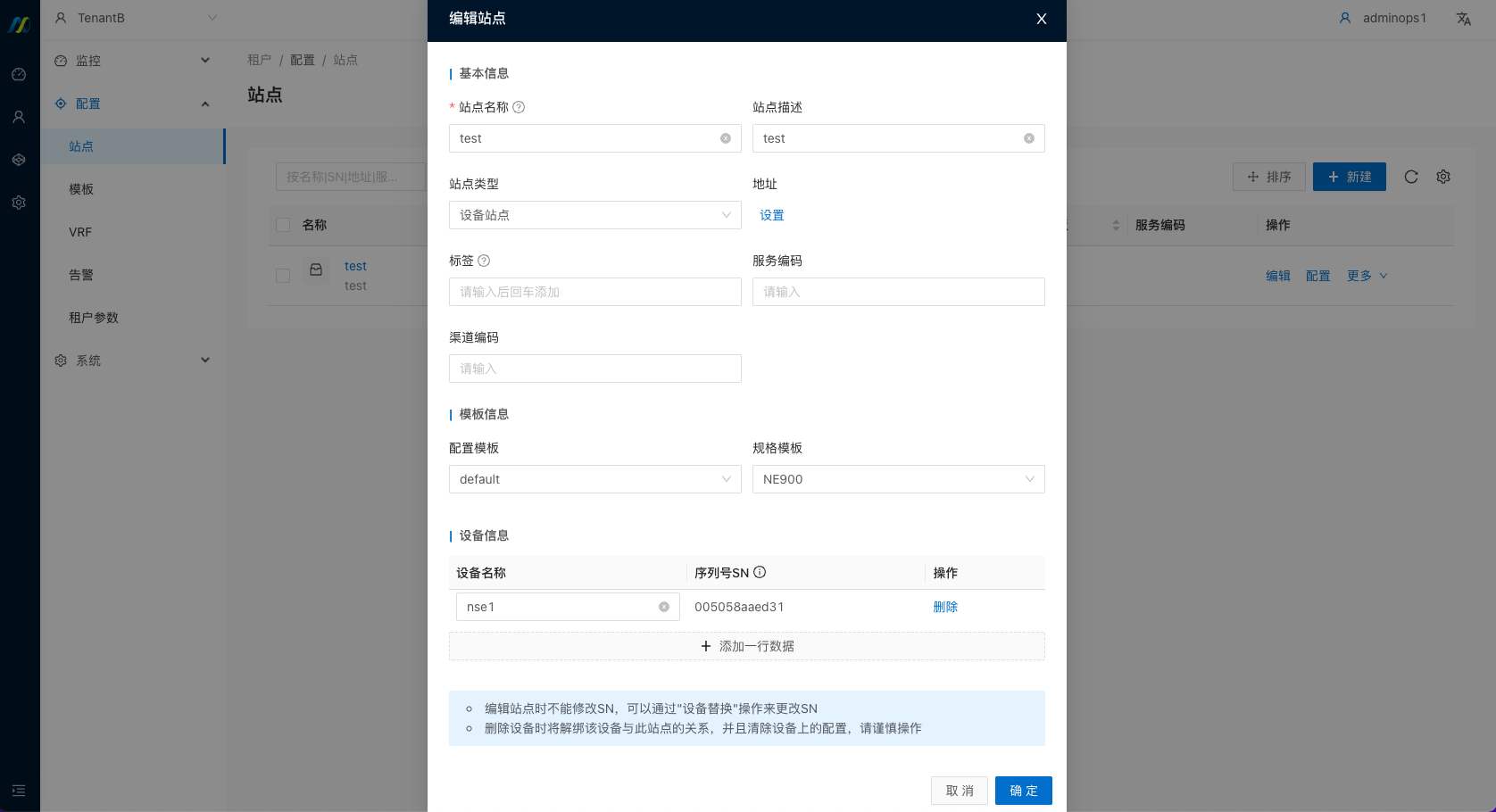
New online device upgrade tips
Function description
- If the newly launched device is not the latest stable version, the user will be prompted to upgrade; the saved configuration will not take effect at this time.
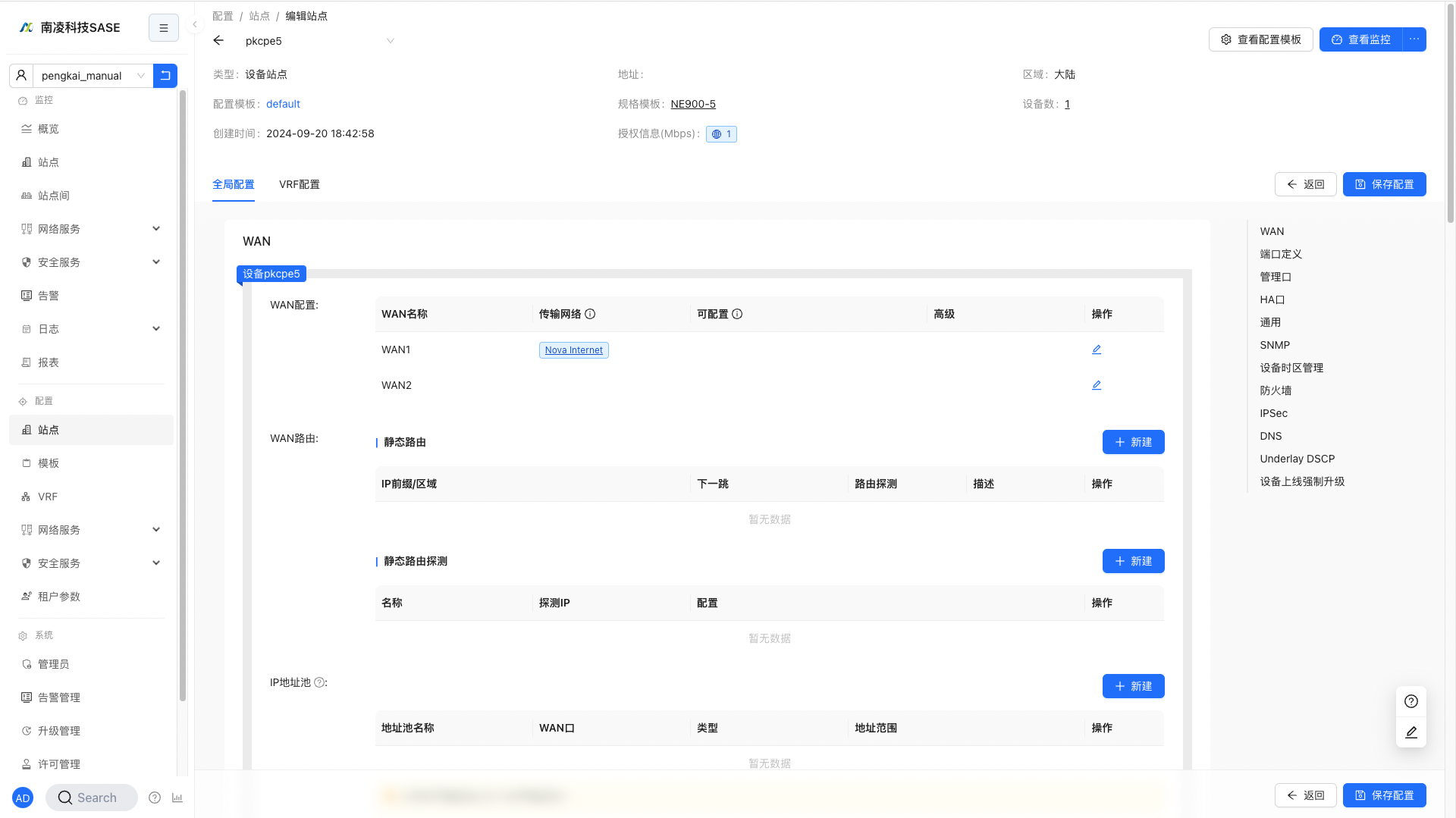
- To make the saved configuration take effect on non-latest stable versions, please check "Ignore forced upgrade when device is activated"
Usage scenarios
Newly launched devices are not the latest stable version
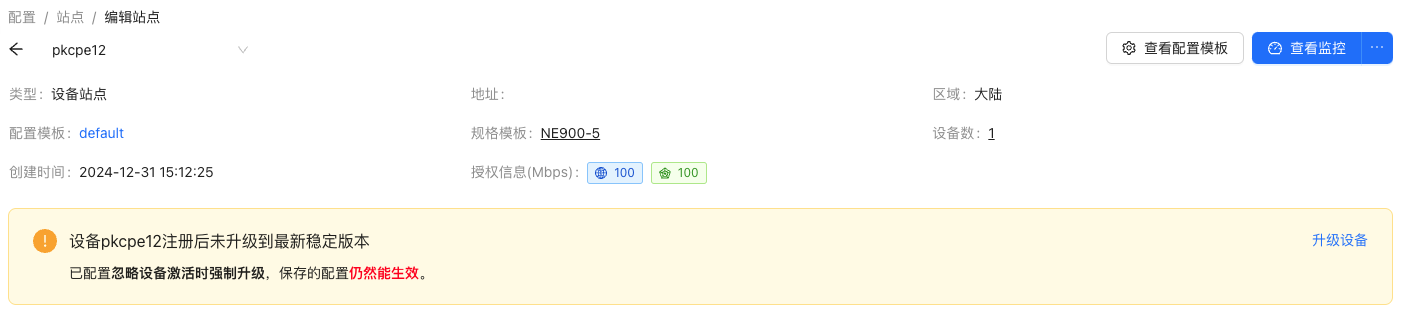
- If the newly online device is not the latest stable version, a prompt message will appear on the following interface (site-configuration, monitoring-site-details, monitoring-site-list interface):
Prompts the user to upgrade and informs the user that the saved configuration cannot take effect at this time.
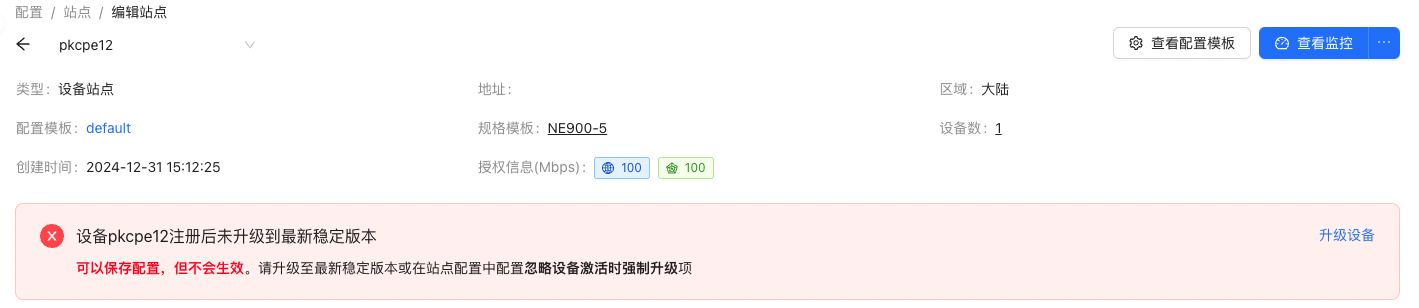
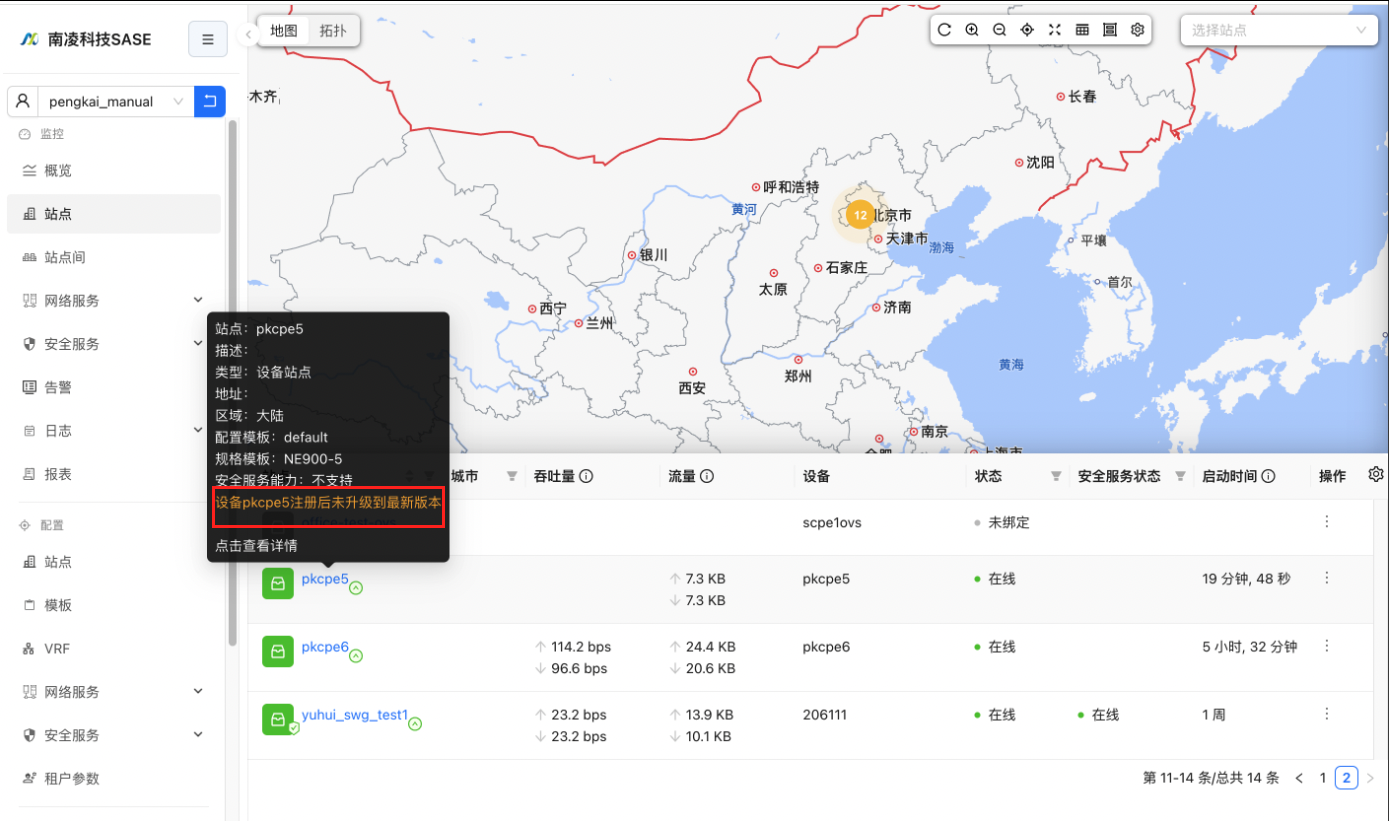
- Click the word "Upgrade Device" in the prompt to jump to the "Device Upgrade" interface to perform the upgrade operation.
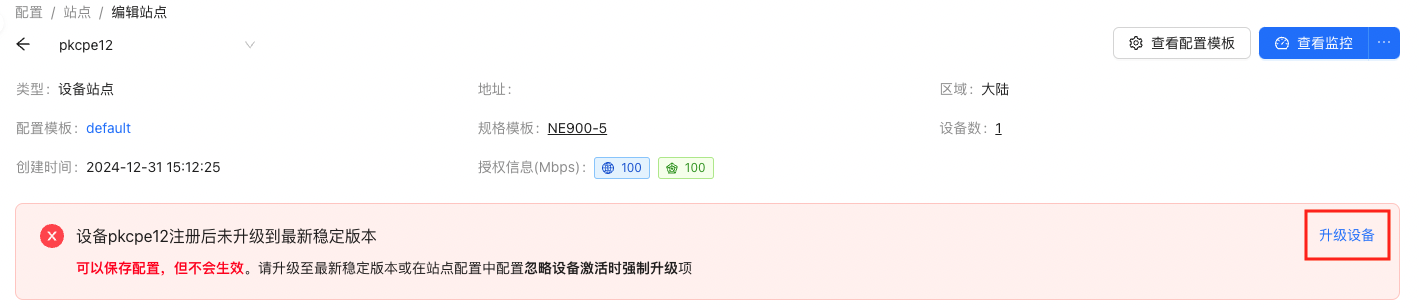
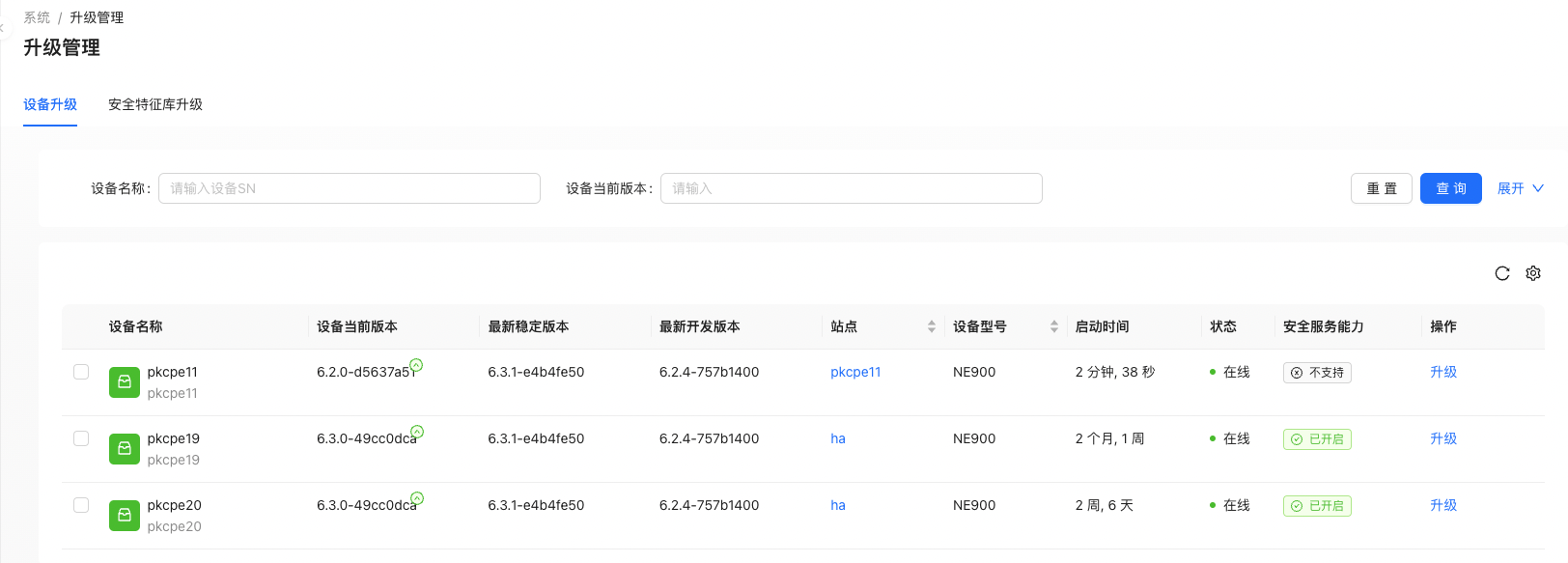
Save configuration on non-latest stable version
- Save the configuration on a non-latest stable version and check "Ignore forced upgrade when device is activated"
Configuration path: "Tenant" → "Config" → "Sites" → "Global Configuration", "Forced upgrade when device is activated" section
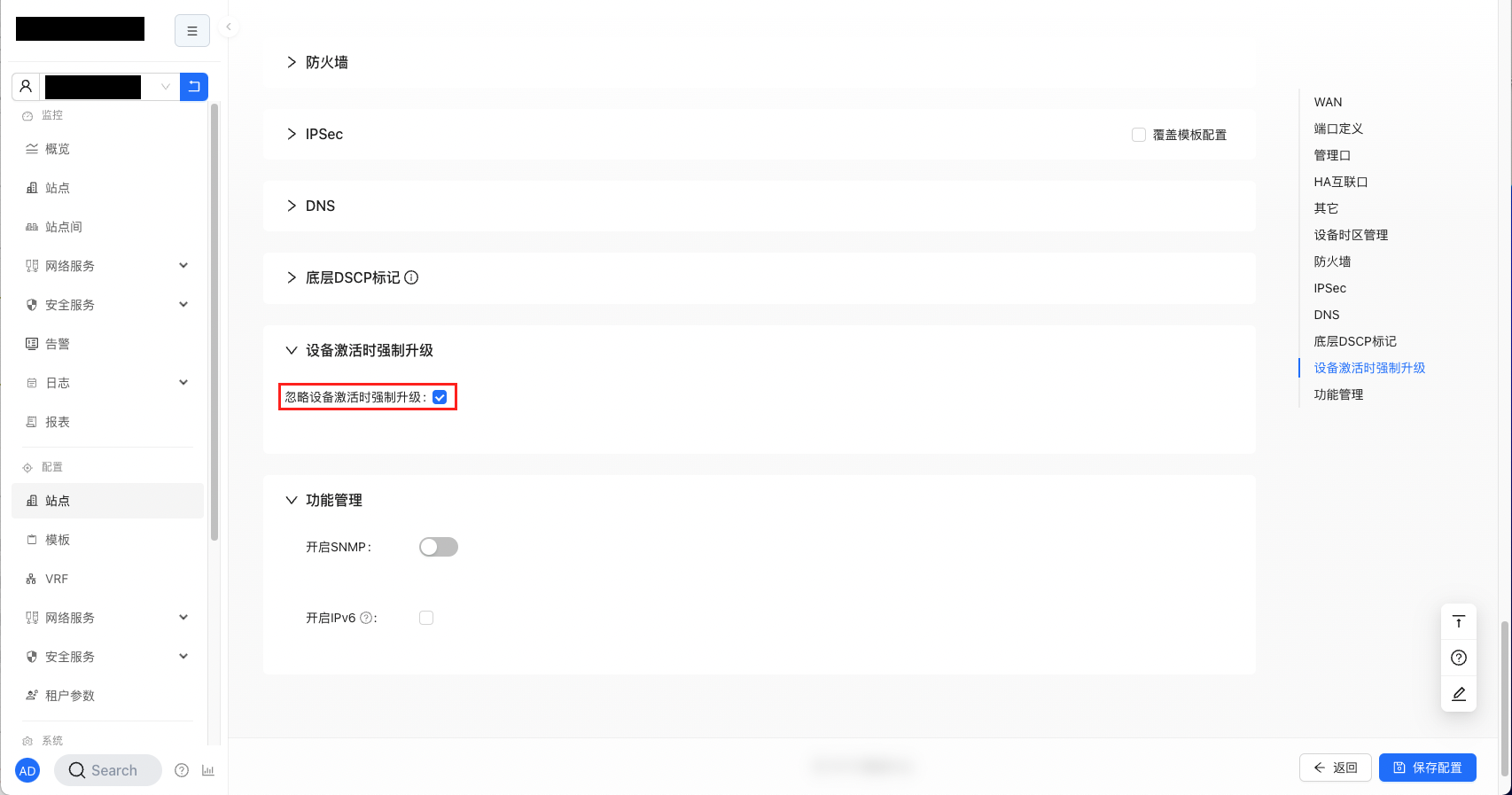
- Check "Ignore forced upgrade when device is activated" and the prompt information will change accordingly. At this time, saving the configuration will take effect.
Upgrade the device to the latest stable version
The device is upgraded to the latest stable version, the prompt message disappears, and the configuration can take effect after saving.