Account
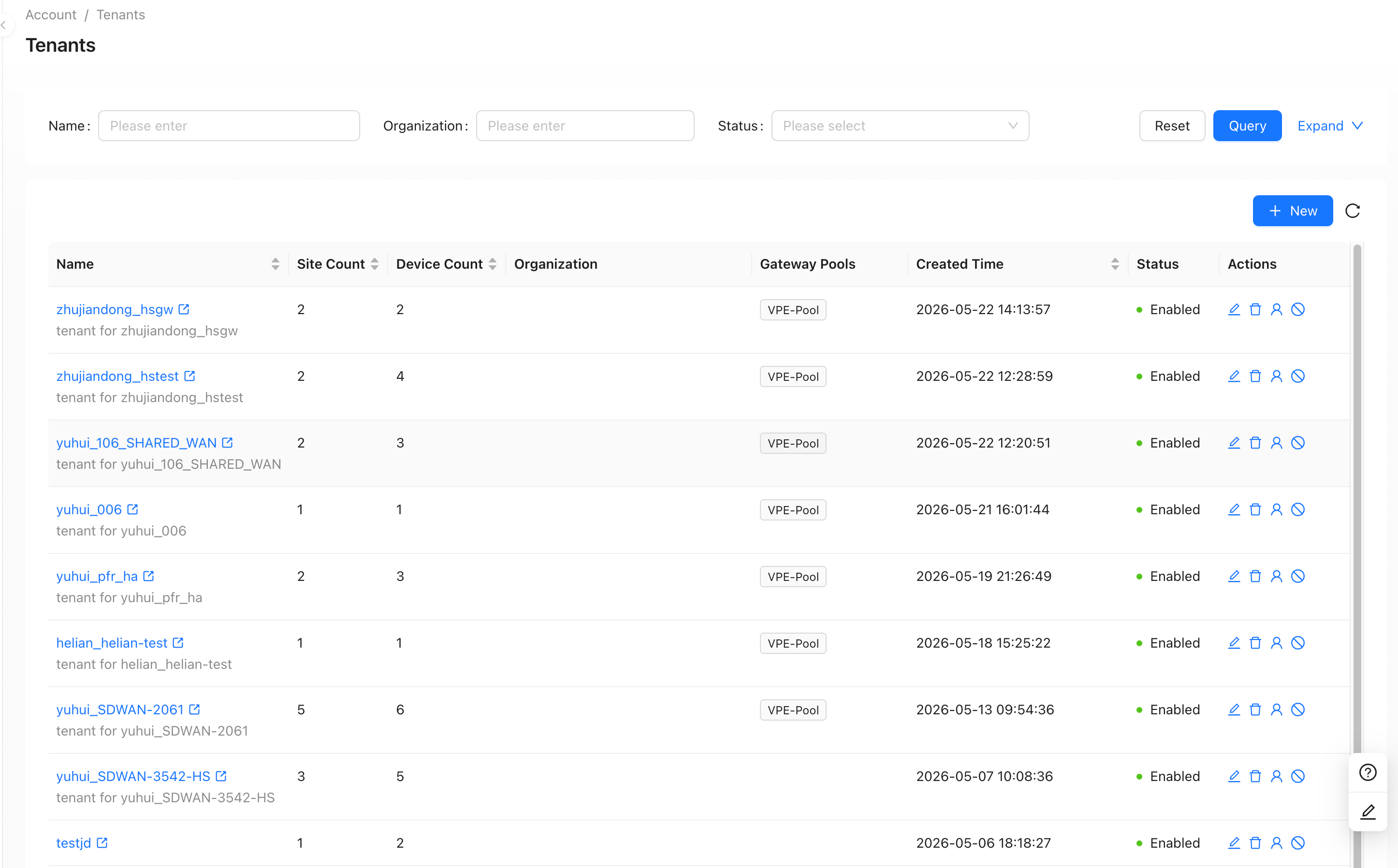
Tenants
"Account"→"Tenants"
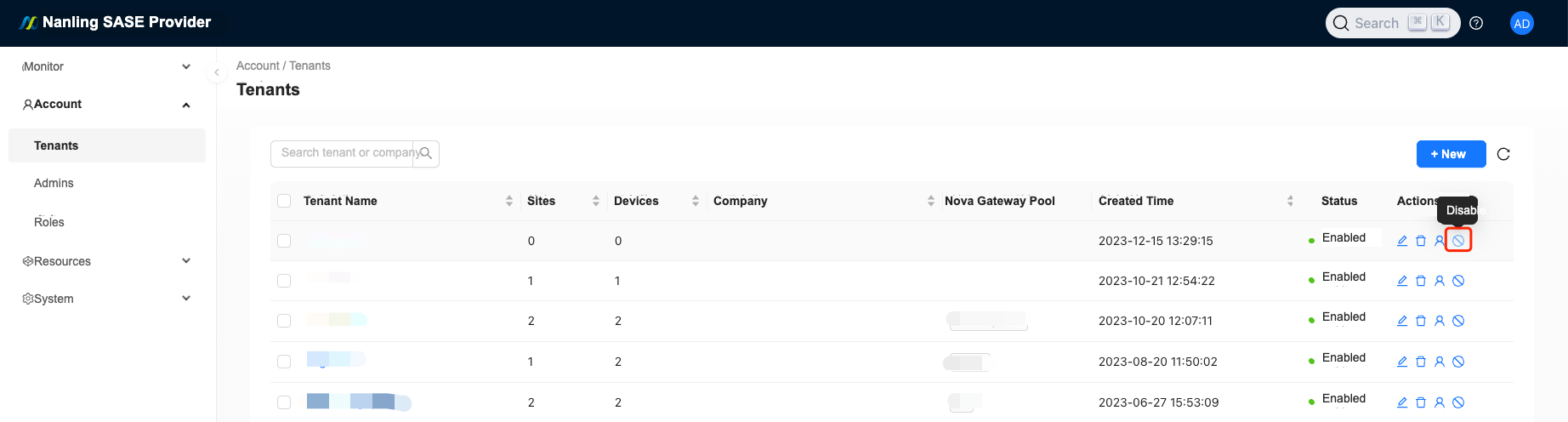
The Tenants page lists tenant name, site count, device count, organization, gateway pools, created time, status, and actions. It also supports filtering by tenant name, organization, and status.
Create Tenant
"Account"→"Tenants"→"New"
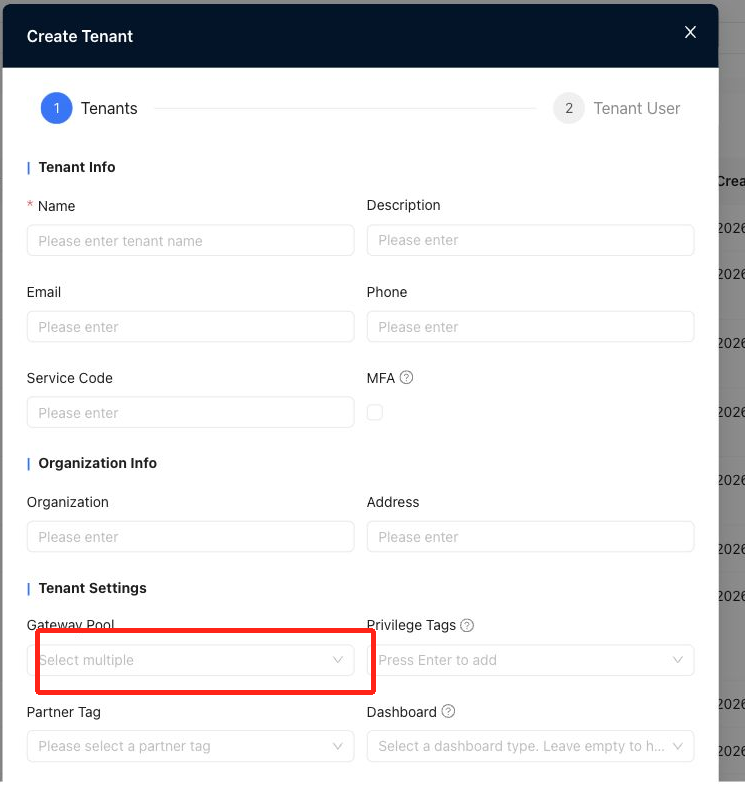
Tenant Info
- Name: cannot contain special characters or spaces, and must start with an English letter.
- Description
- Phone
- Service Code
- MFA: when enabled, all users under the tenant must enable multi-factor authentication and cannot turn it off.
Organization Info
- Organization
- Address
Tenant Settings
- Gateway Pool: assigns gateway pools to the tenant.
- Privilege Tags: used to scope permissions for different administrators.
- Partner Tag: associates the tenant with a partner tag.
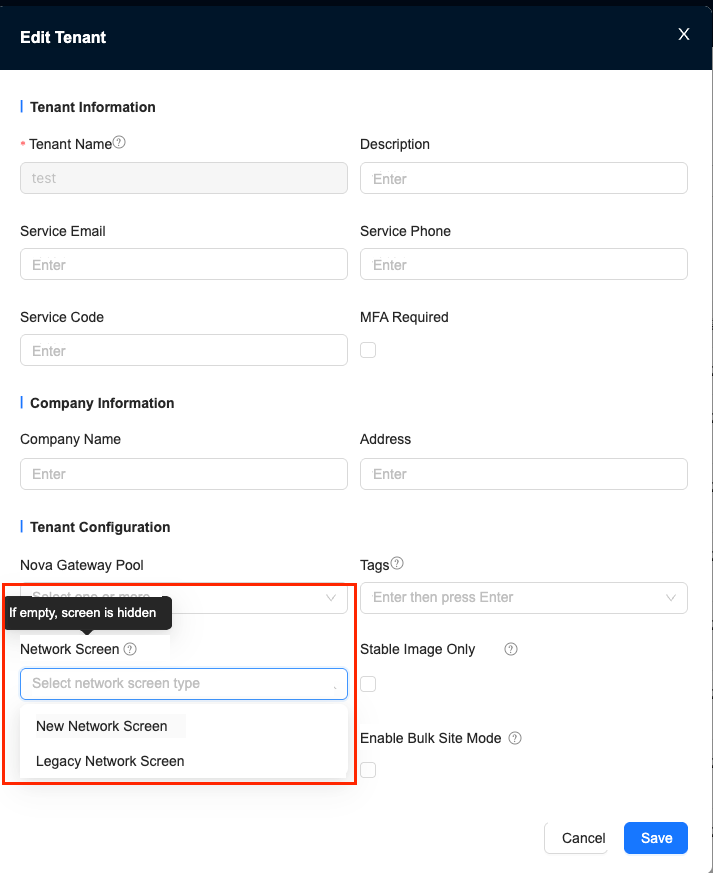
- Dashboard: selects the tenant dashboard type. Leave it empty to hide the dashboard.
- Only allow stable image upgrades: when enabled, the tenant can only upgrade to stable device images.
- Enable hierarchical organization: enables hierarchical site/organization management for the tenant.
- Enable large-scale mode: optimizes tenant pages for large numbers of sites.
Enable Site Area Management
After hierarchical site area management is enabled, tenant user permissions can be scoped to site areas, and tenant administrators manage only the assigned site areas.
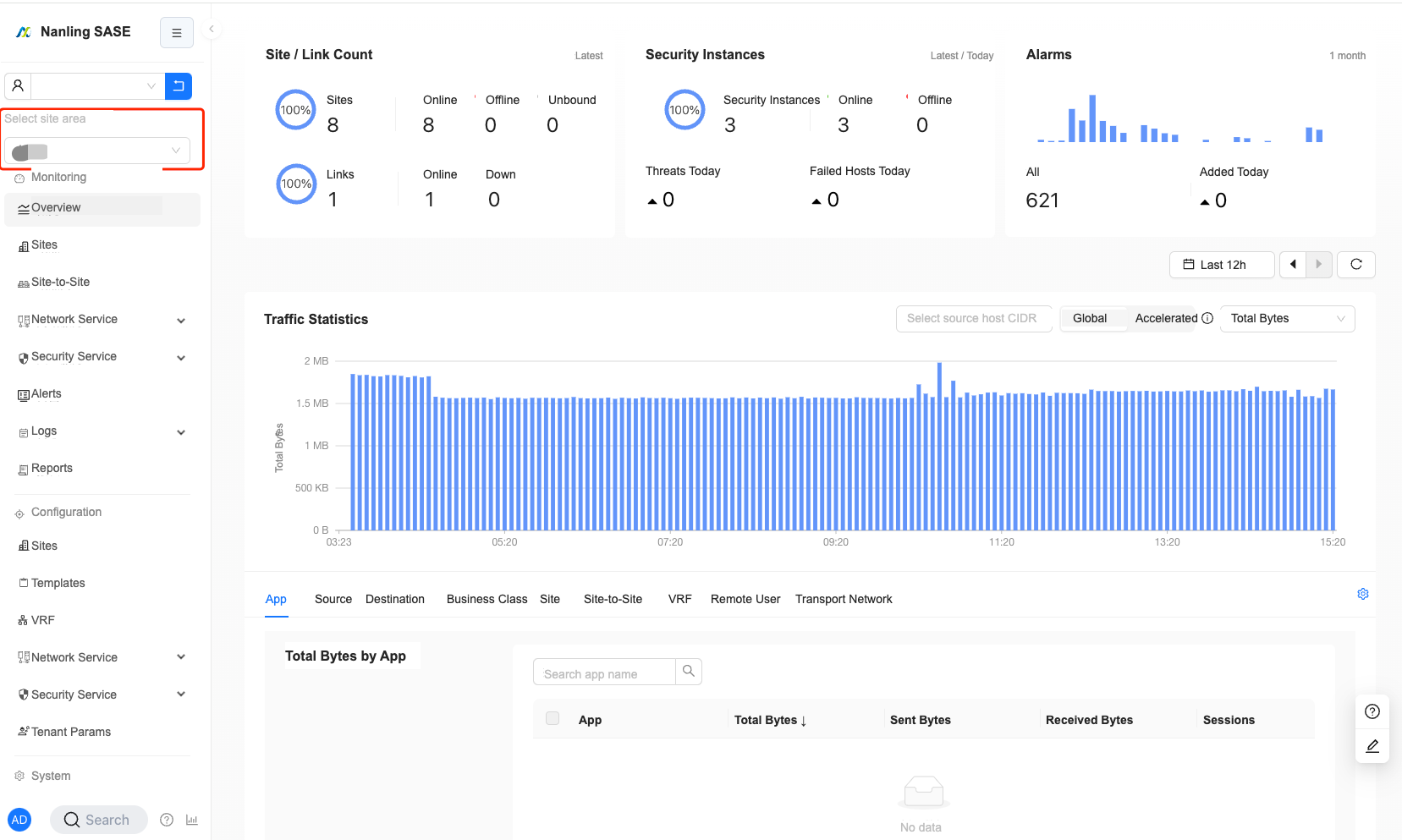
The site area selector chooses the root site area by default. Configure site areas under "Config"→"Sites".
Dashboard Configuration
The dashboard field supports disabled, legacy dashboard, and new dashboard options.
Shut Down a Tenant
The tenant shutdown action is available on the provider Account→Tenants page.
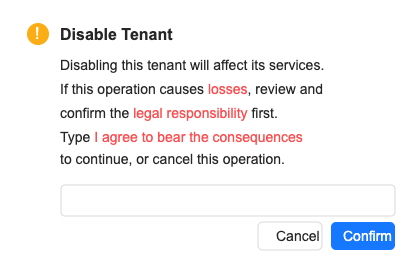
The operator is responsible for any loss or legal liability caused by shutting down a tenant.
Users
"Account"→"Users"
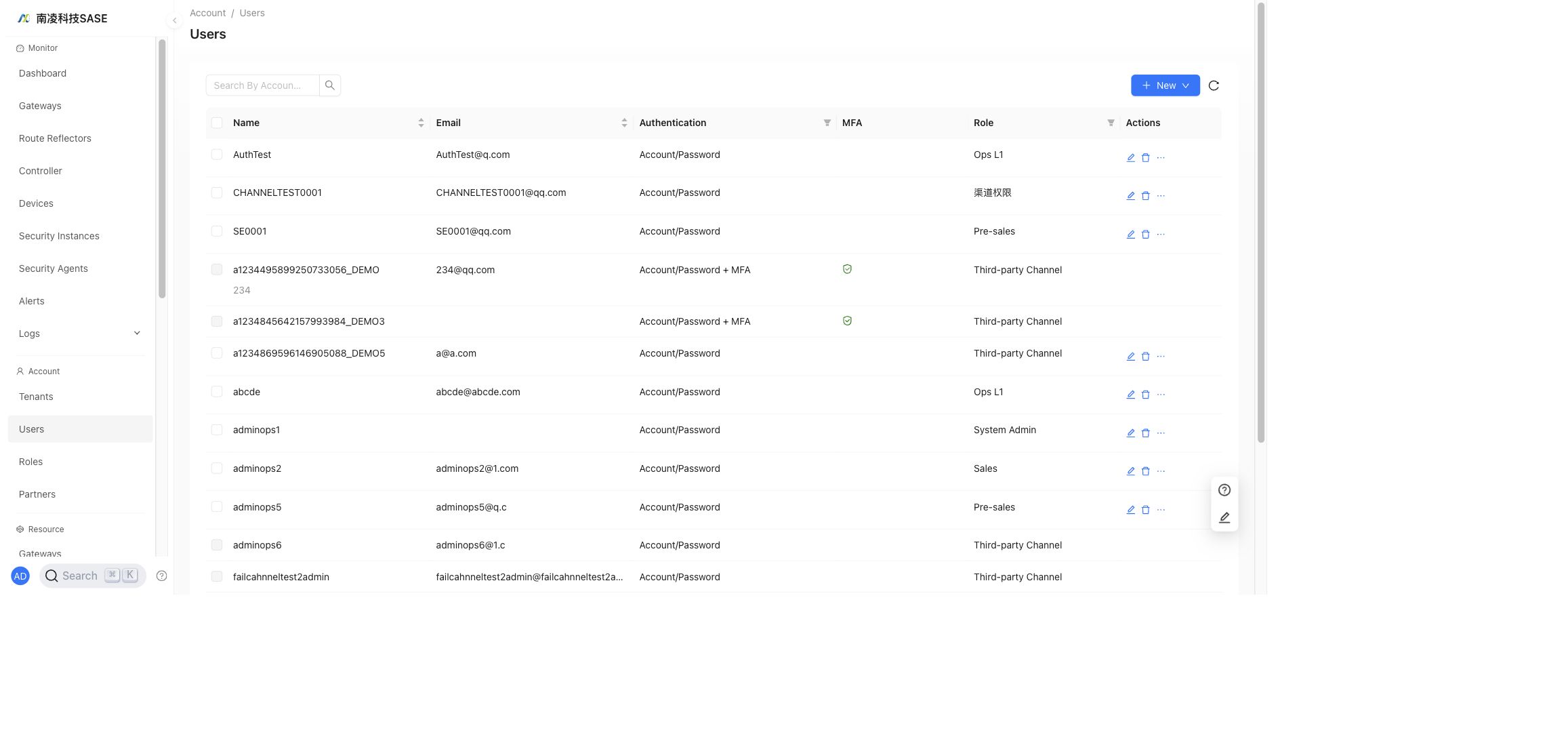
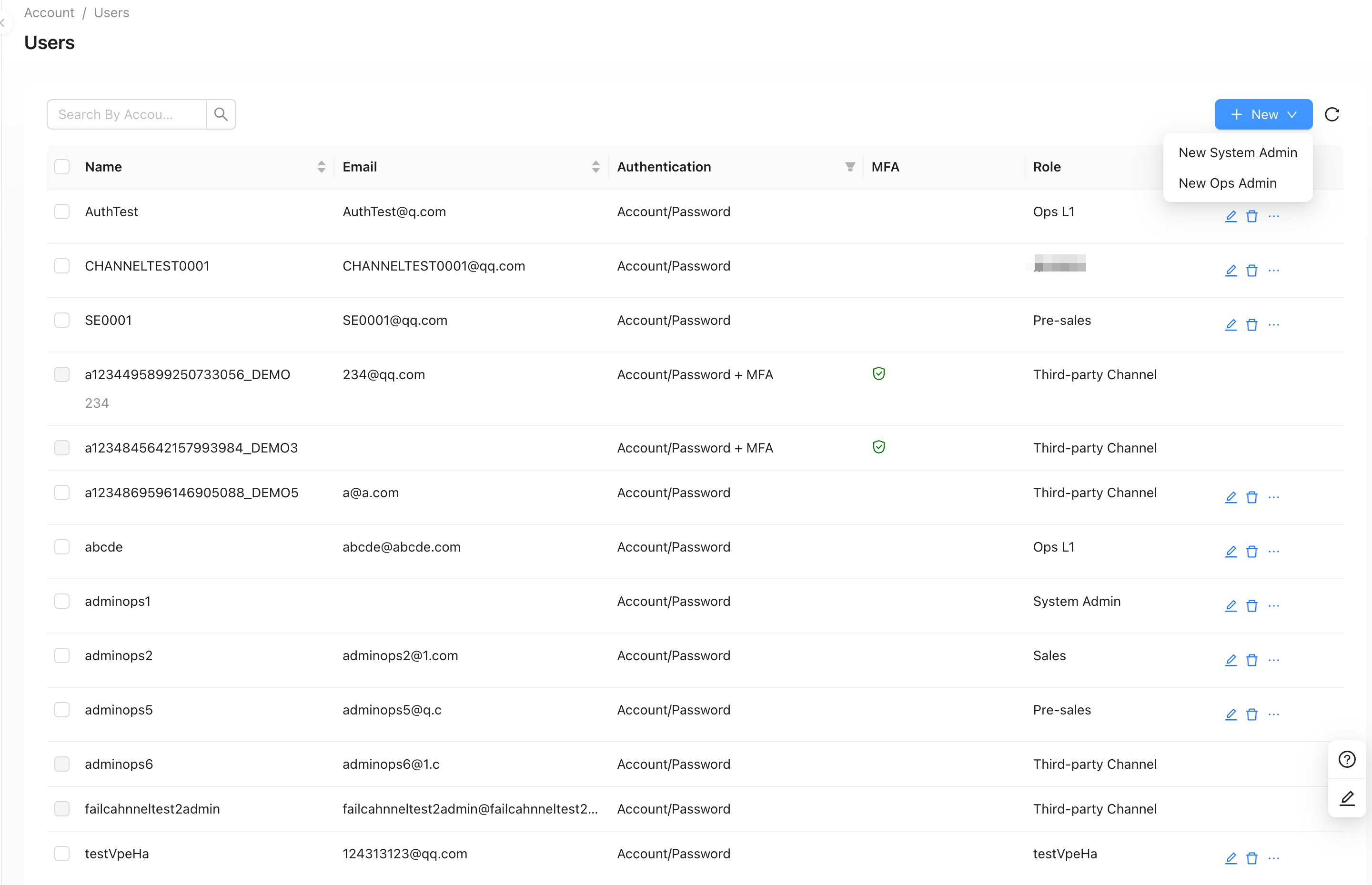
The Users page lists provider users, authentication mode, MFA status, role, and actions.
Create User
"Account"→"Users"→"New"
The New menu supports New System Admin and New Ops Admin.
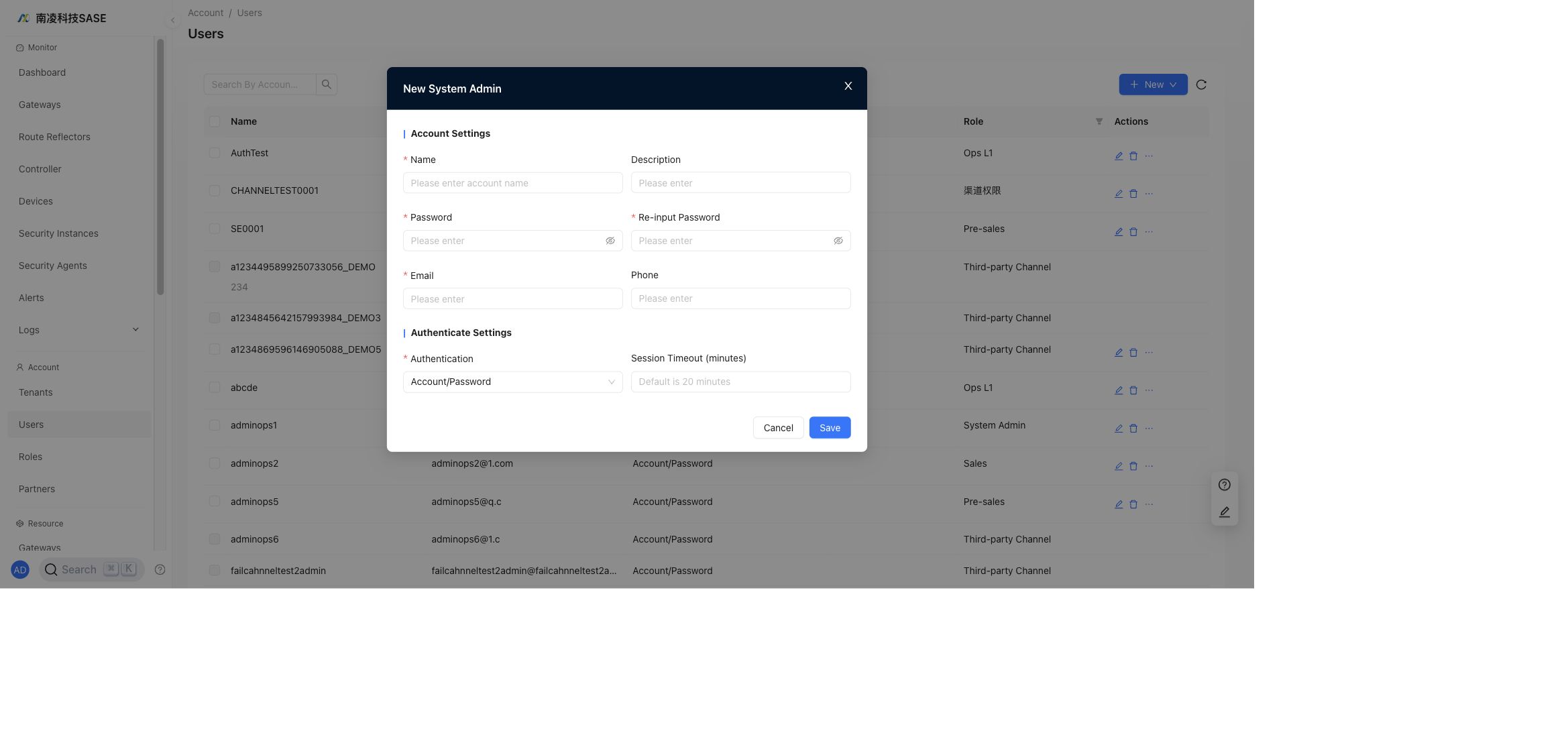
The user creation form includes account settings such as name, description, password, email, phone, authentication mode, and session timeout.
Roles
"Account"→"Roles"
The Roles page lists role name, role type, privileges, and actions. It also provides Edit Privilege Descriptions and New.
Create Role
"Account"→"Roles"→"New"
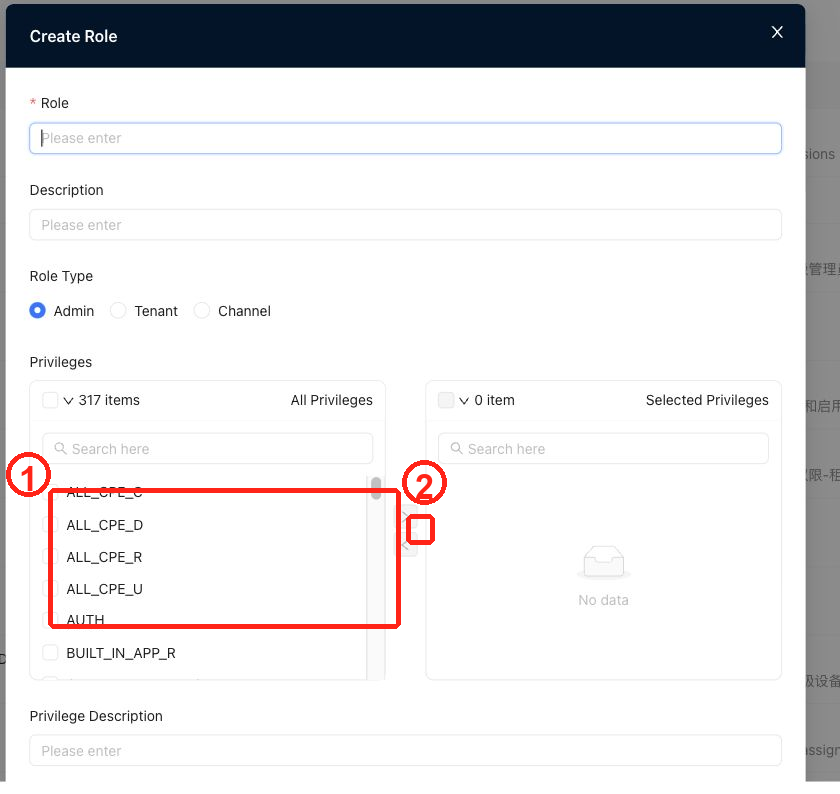
Roles define sets of provider permissions that can be assigned to users. Select privileges in area ①, click the transfer button in area ②, and then save the role.
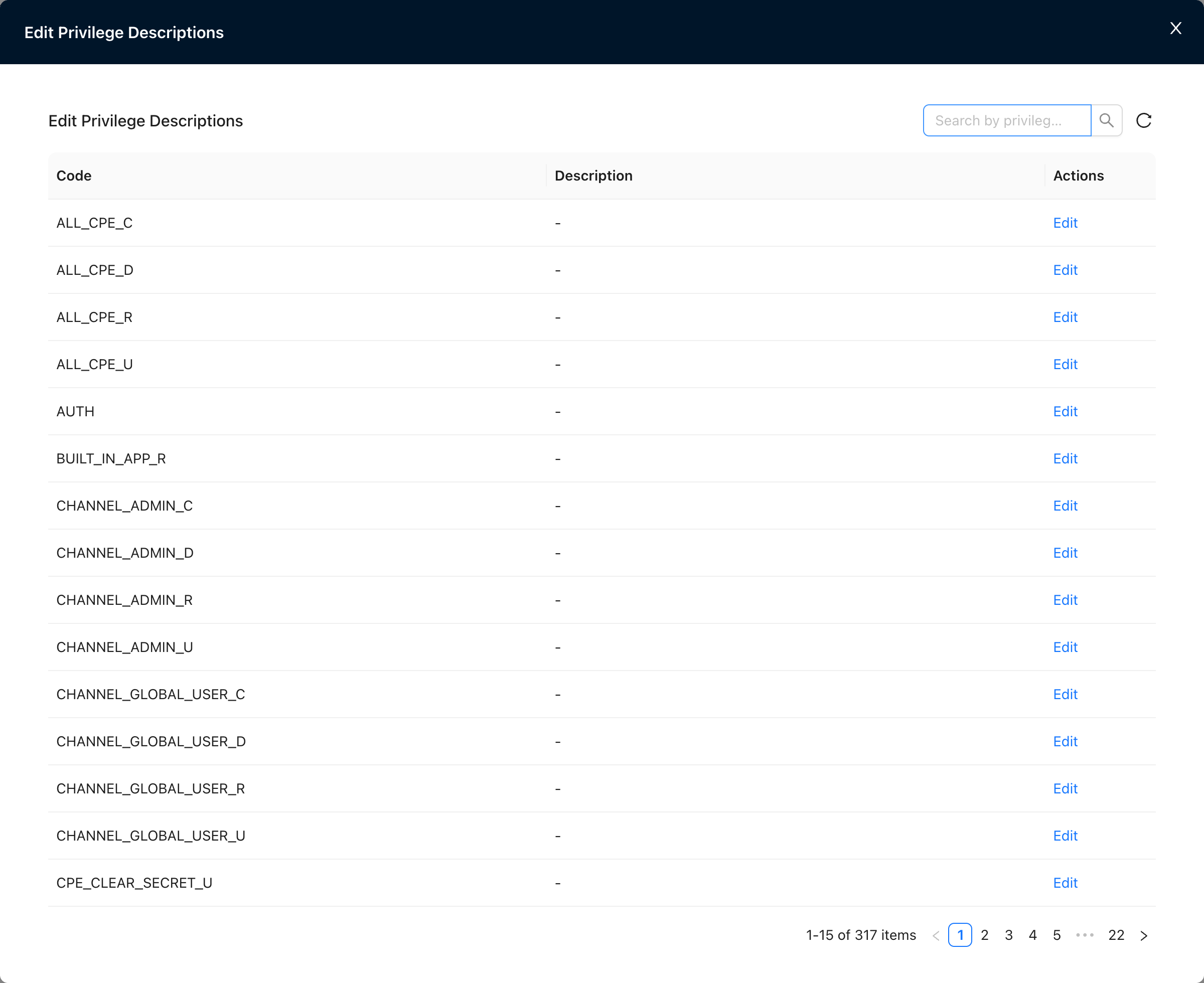
Edit Privilege Descriptions
Privilege descriptions can be edited so permission codes are easier to understand.
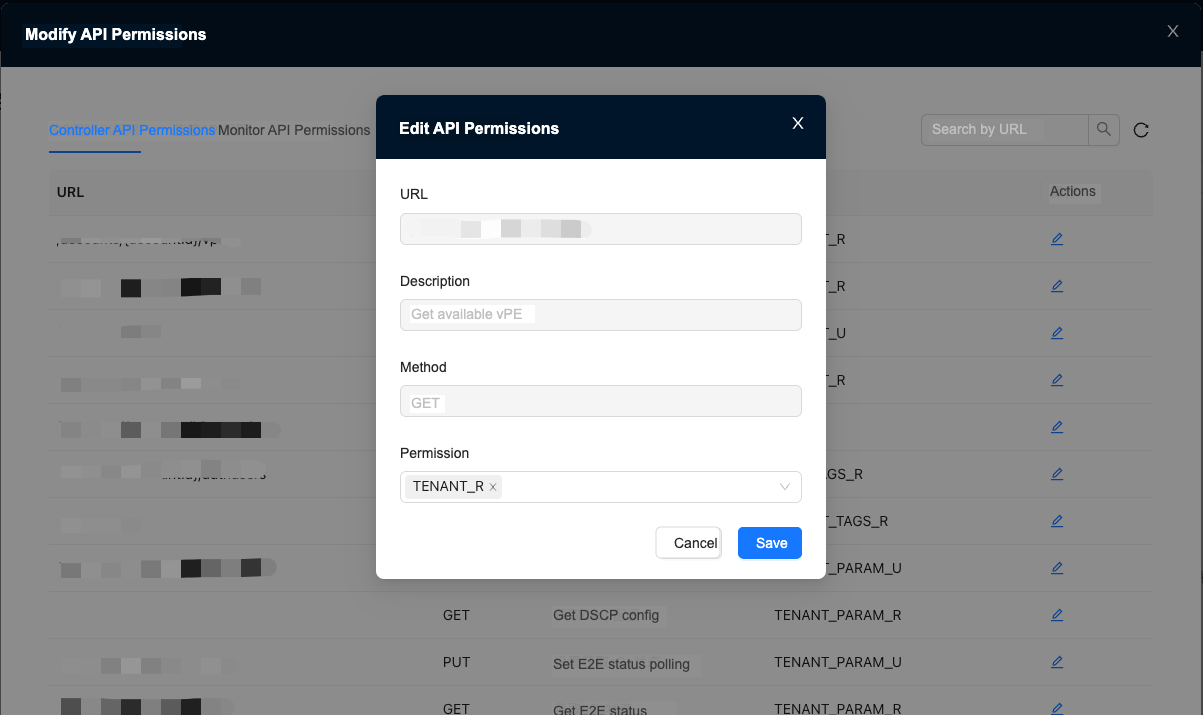
Modify API Permissions
API permissions can be customized by opening the Roles page with ?debug=1 appended to the URL.
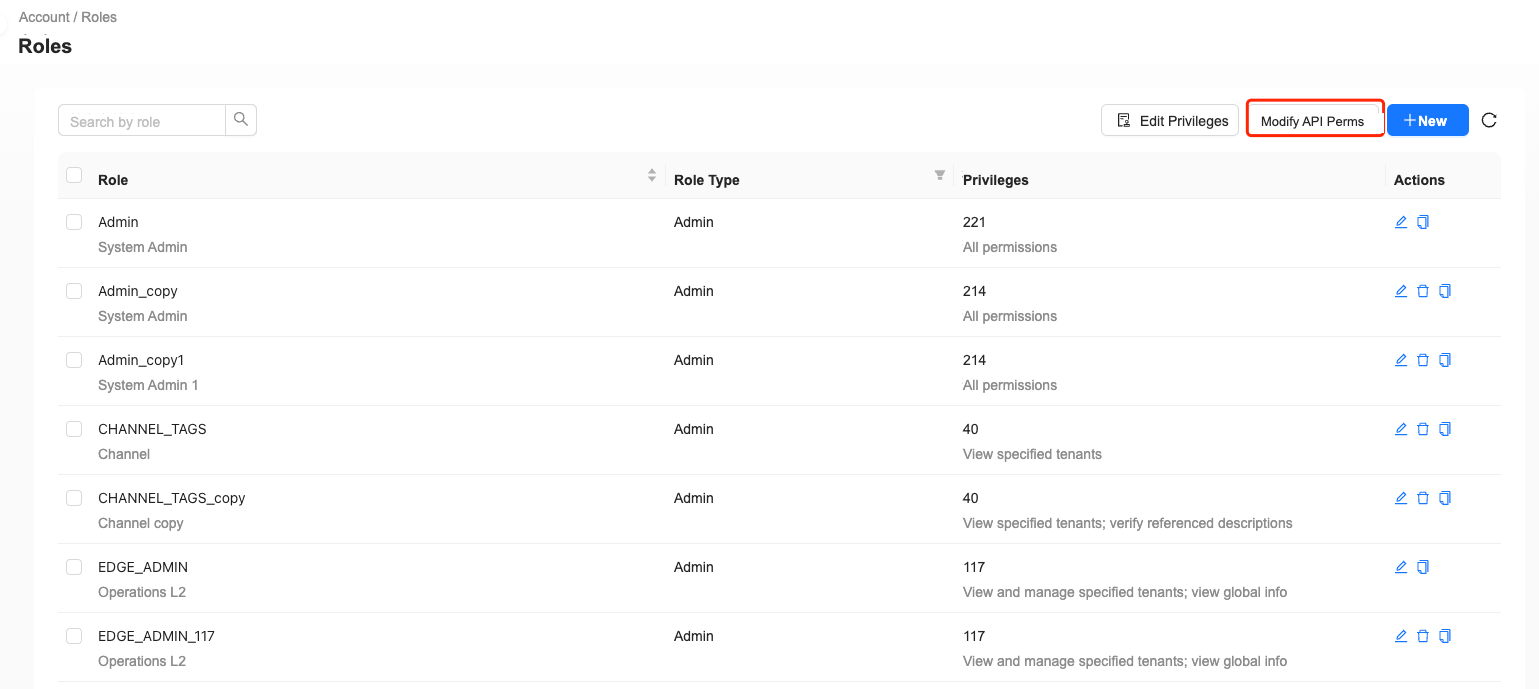
Permissions can be added for monitoring APIs or controller APIs.
Partners
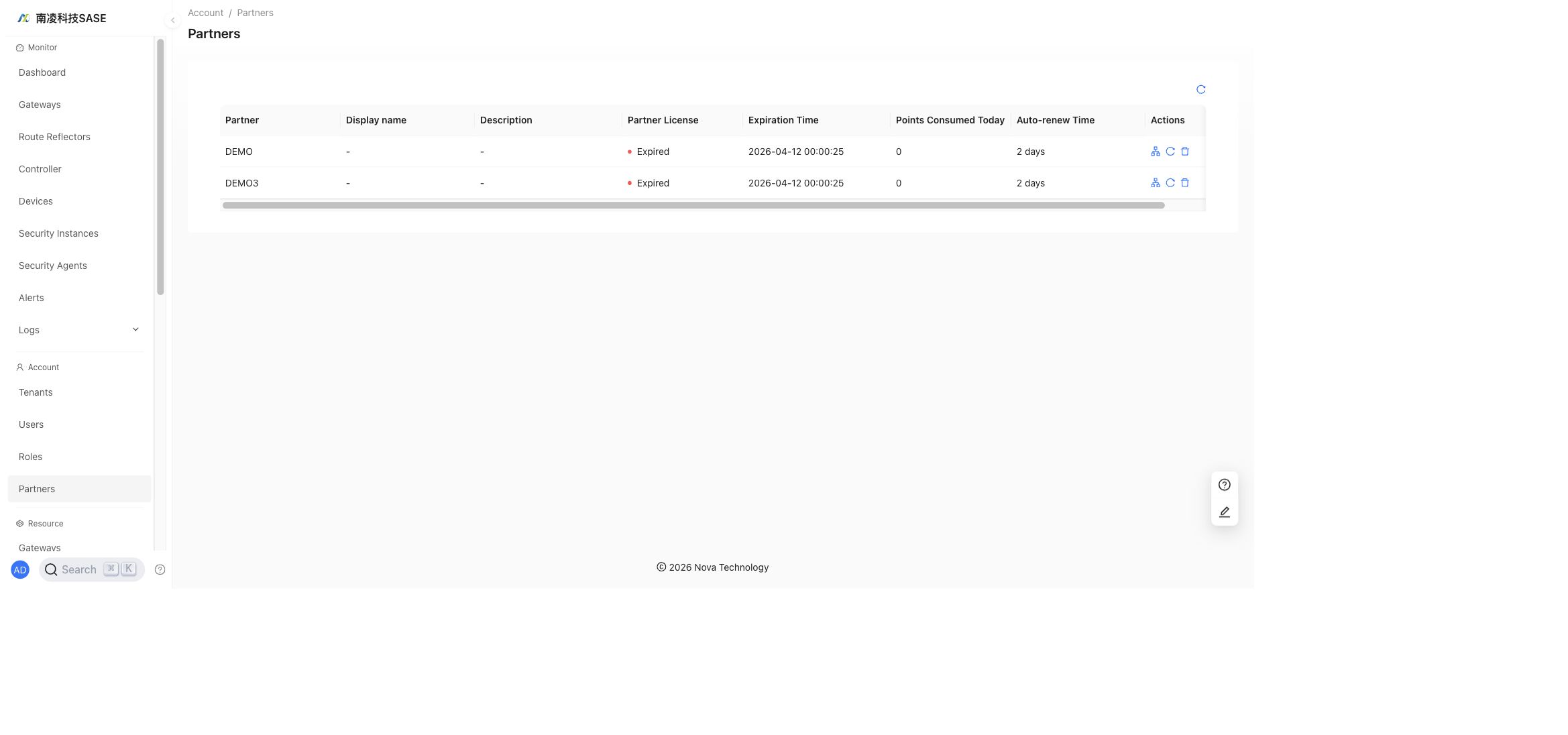
"Account"→"Partners"
The Partners page shows partner authorization information, license expiration, points consumed today, and auto-renew time.