Upgrade
- Security Cloud Instance Upgrade Management
- Equipment Upgrade Management
"Tenant"→"System"→"Upgrade"
Note: The upgrade management here is Security Cloud Instance upgrade management, so the premise is that the Security Service capability must be available and the Security Service status is turned on.
(Manual) upgrade steps: Click "Instance Name" → "Upgrade Now"
(Automatic) upgrade steps: Click "Enable automatic upgrade" → Fill in "CRON expression" → "Save"
Steps to enable Security Service: At the tenant level, click "Config"→"Sites"→"More"→"Authorization"→"Enable Security Permission"→
Fill in the "Number of VRFs that can be applied" → Check "Advanced Features" as needed and save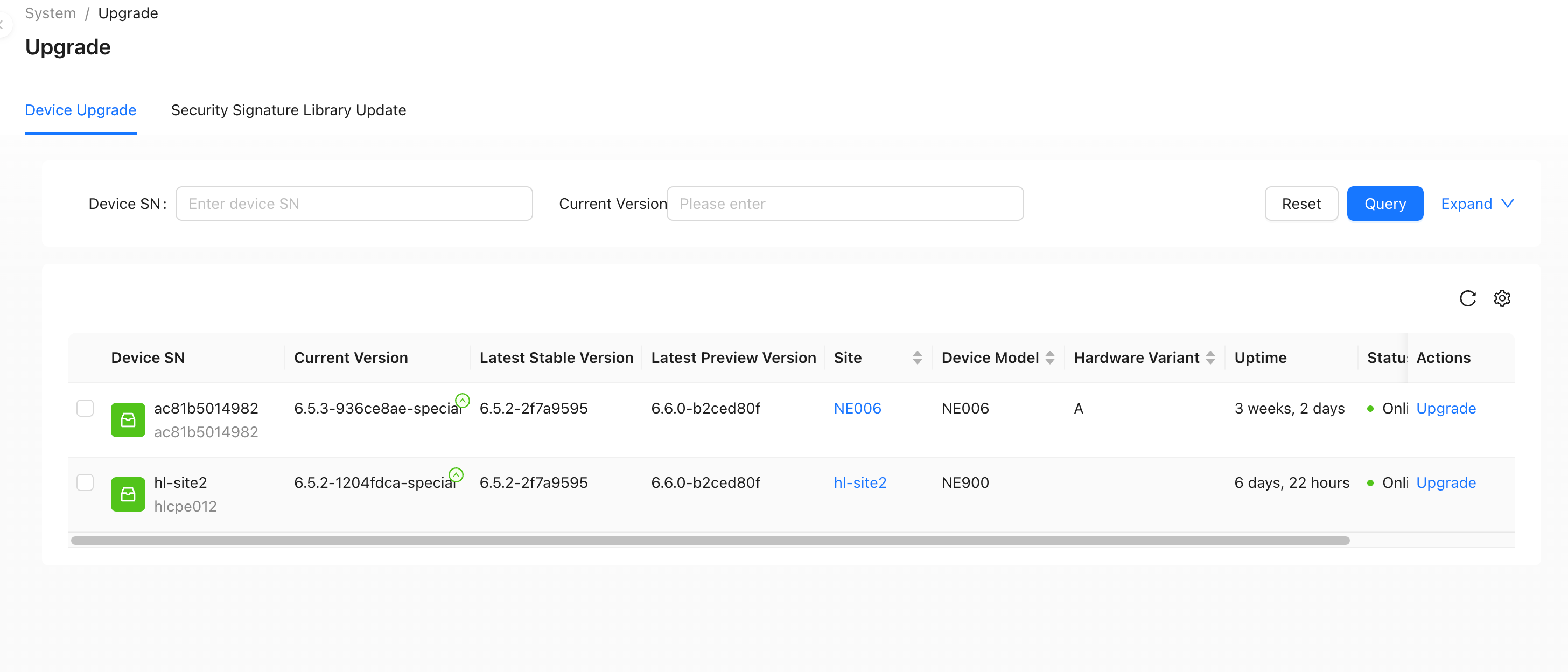
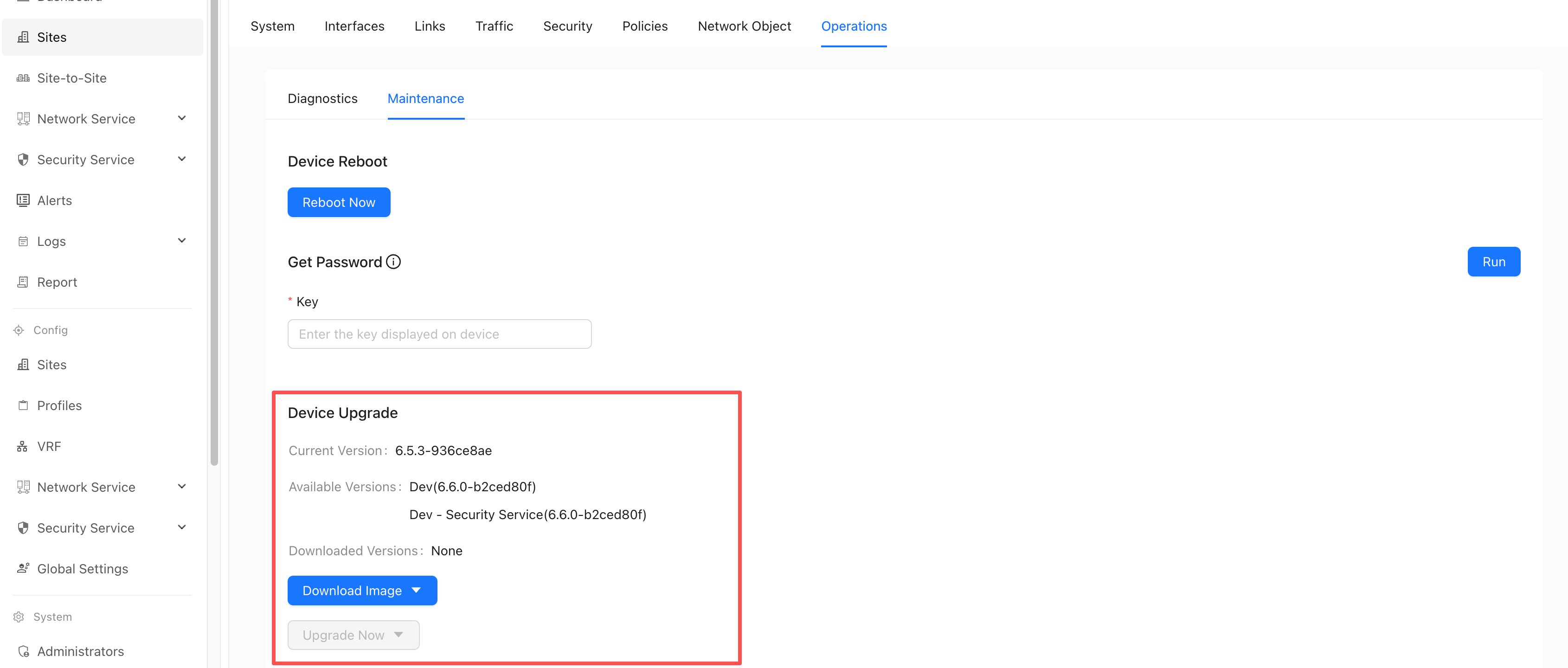
Single Device Upgrade
"Tenant" → "Monitor" → "Sites" → "Operation" → "Equipment Maintenance" → "Equipment Upgrade"
Batch Upgrade
"Tenant"→"System"→"Upgrade"→"Device Upgrade"
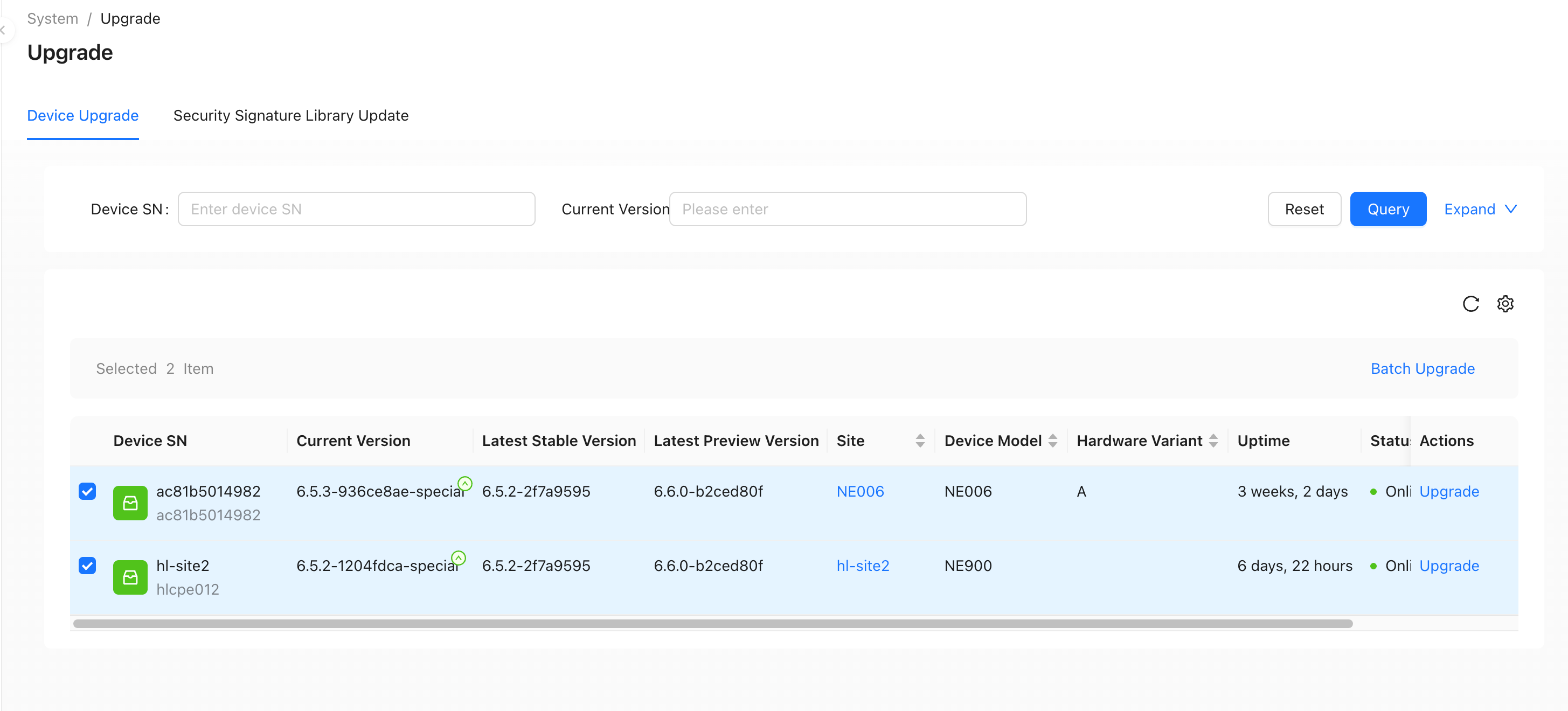
Select the devices that need to be upgraded, click Batch Upgrade, and select the version that needs to be upgraded to download.
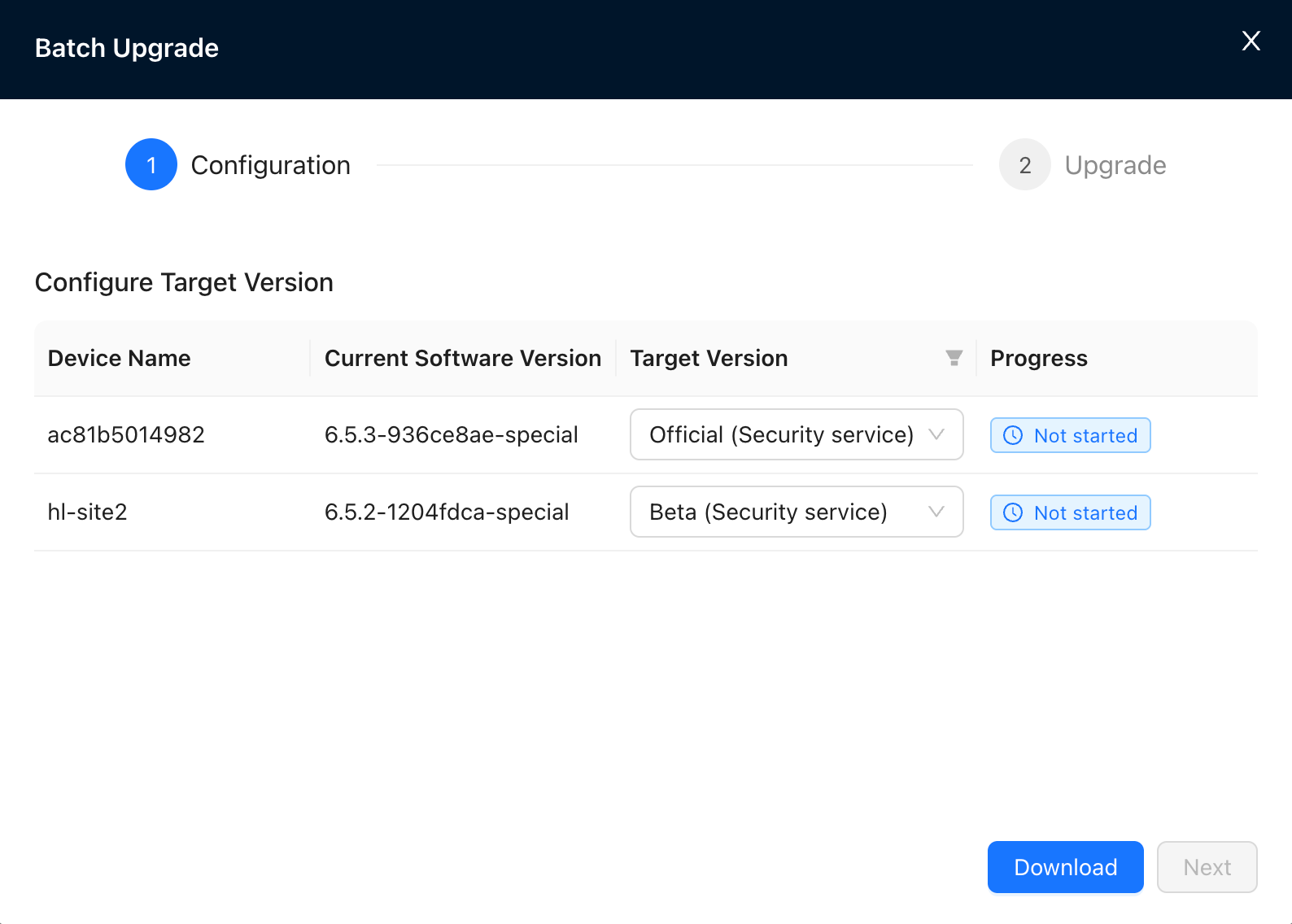
Click to download. After the download is completed, click to upgrade.
HA site upgrade:
- When the device site is deployed in HA, the upgrade steps are;
- Upgrade the standby device - device B; the current primary device is device A;
- Modify the HA priority and turn device B into the master device;
- Upgrade device A;
- Modify the HA priority and change device A back to the master device;