Network Objects
Address Group
"Tenant"→"Config"→"Network Service"→"Network Objects"→"Address Group"
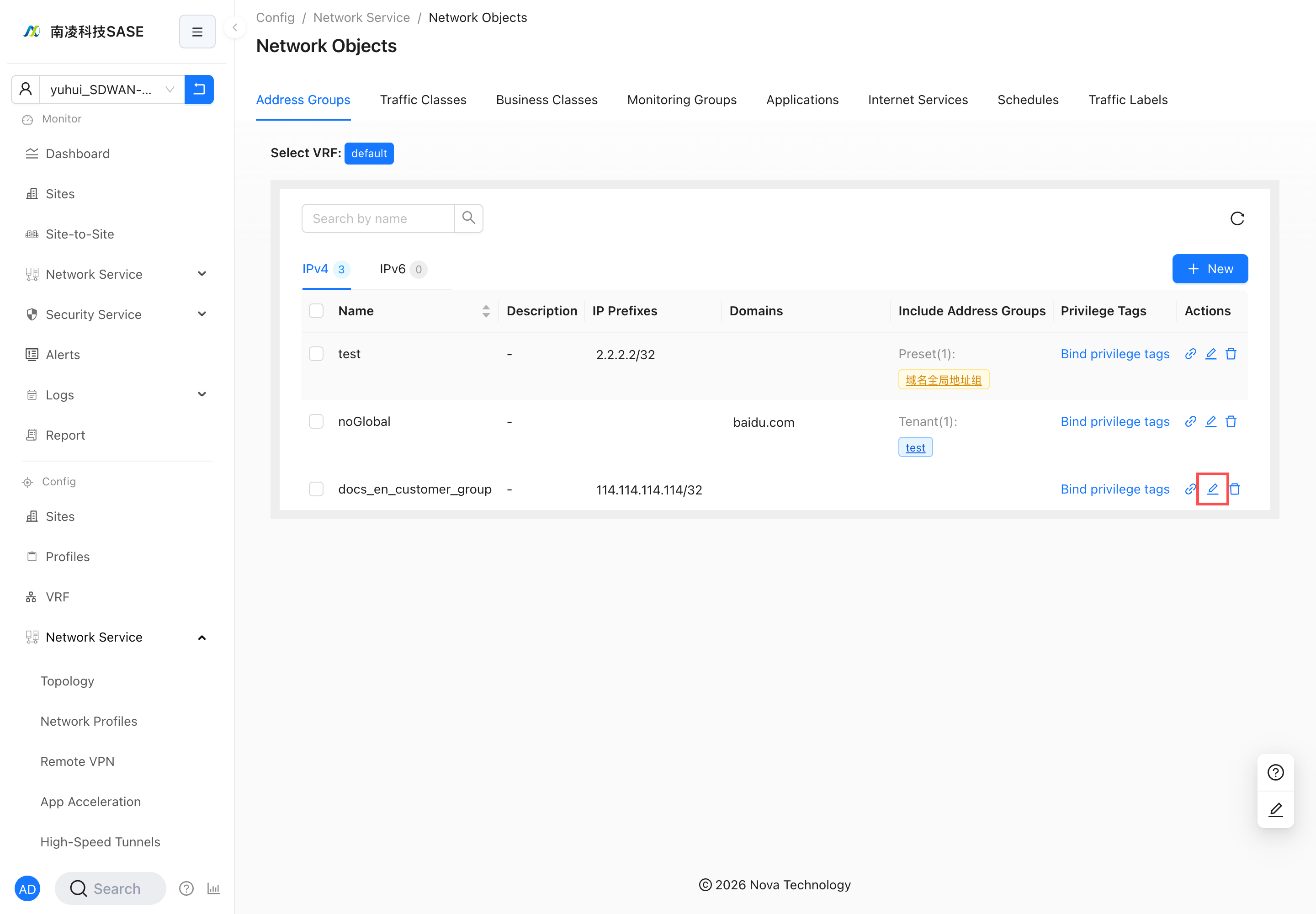
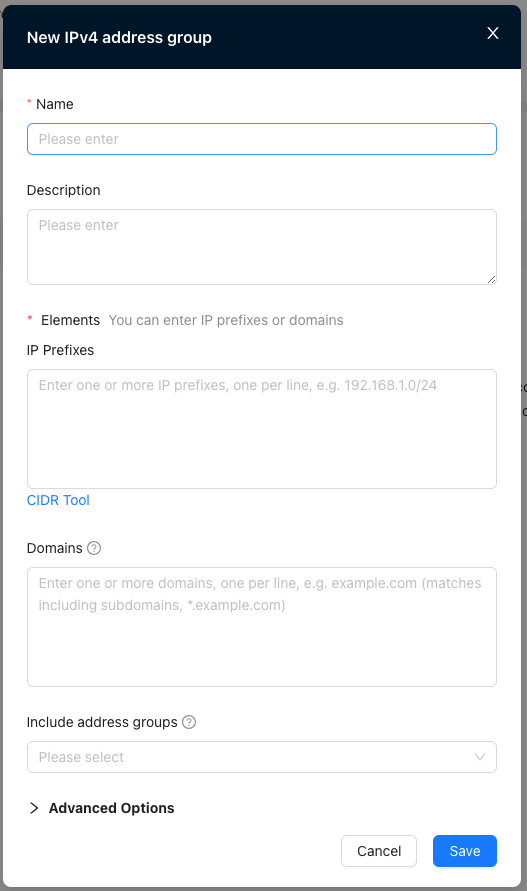
Create an Address Group
- Click New.
- Enter a name.
- Enter the IP prefix. You can use the CIDR tool to deduplicate and validate IP prefixes.
- Click Save.
Delete an Address Group
Click the Delete icon in the Operation column and confirm.
Traffic Classes
"Tenant"→"Config"→"Network Service"→"Network Objects"→"Traffic Classes"
Create a Traffic Class
Click New and fill in the configuration.
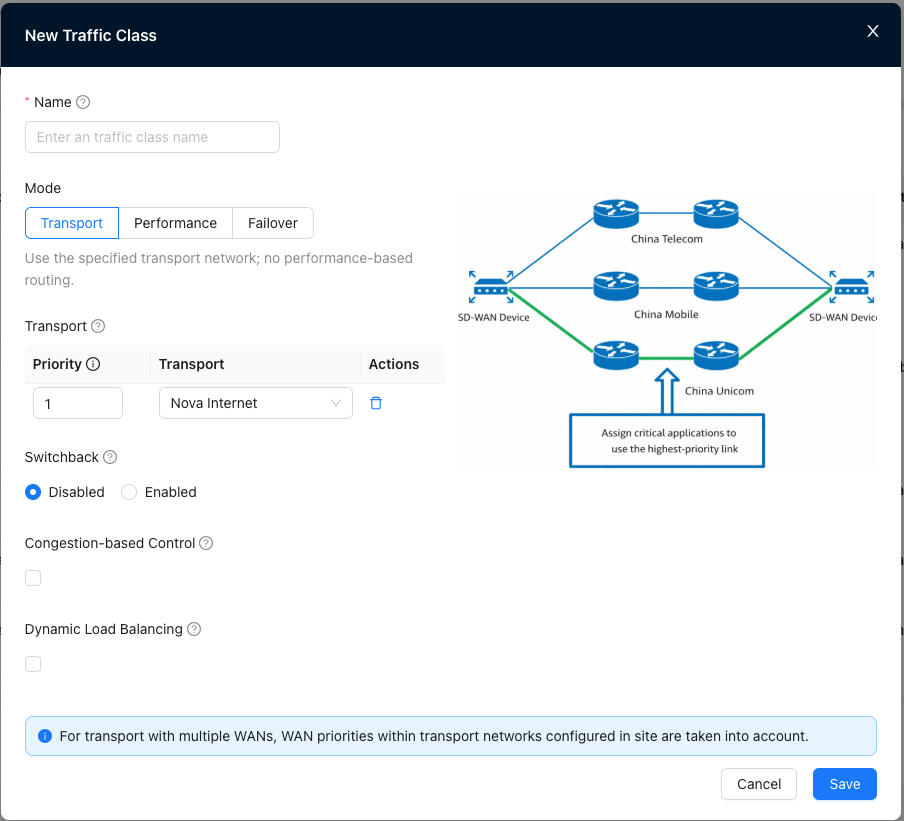
Mode
- Transport: Use the specified transport network.
- Performance: Distributes traffic based on link performance thresholds defined in service class.
- Failover: Distributes traffic based on link state.
Switchback: Whether to switch flows back when the status/quality of a high-priority link recovers.
Congestion-based Control: Whether to perform switching when current link utilization reaches congestion thresholds, configured on WAN or Transport QoS.
For the bandwidth congestion threshold configuration, refer to WAN Configuration and Transport Network QoS.
Create a Business Policy
"Tenant"→"Config"→"Network Service"→"Network Profiles"→"Edit"→"Business Policy"→New
Enable and select Traffic Class in the business policy.
Override Traffic Class Behavior
Traffic Class behavior can be overridden in site configuration. In addition, WAN interface can be specified for finer granular control at site.
Delete a Traffic Class
Click the Delete icon in the Operation column and confirm.
Business Class
"Tenant"→"Config"→"Network Service"→"Network Objects"→"Business Class"
Create a Business Class
Click New and fill in the configuration.
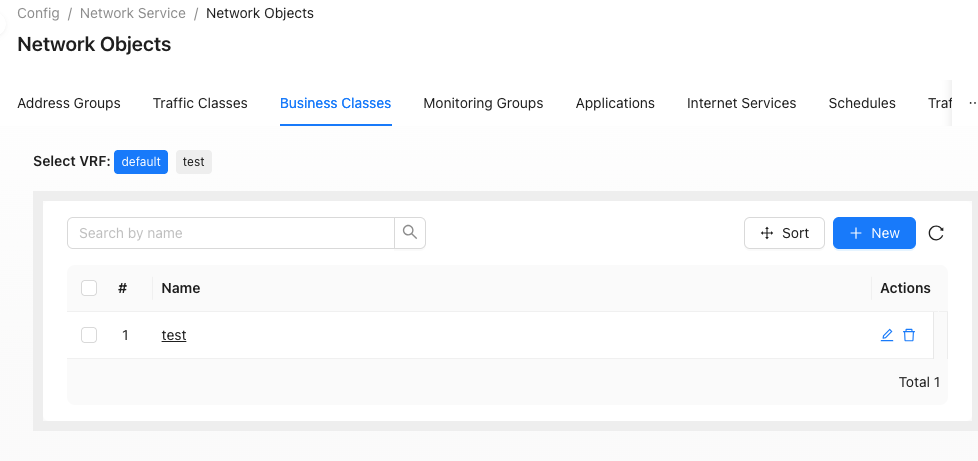
Delete a Business Class
Click the Delete icon in the Operation column and confirm.
Monitoring Group
"Tenant"→"Config"→"Network Service"→"Network Objects"→"Monitoring Group"
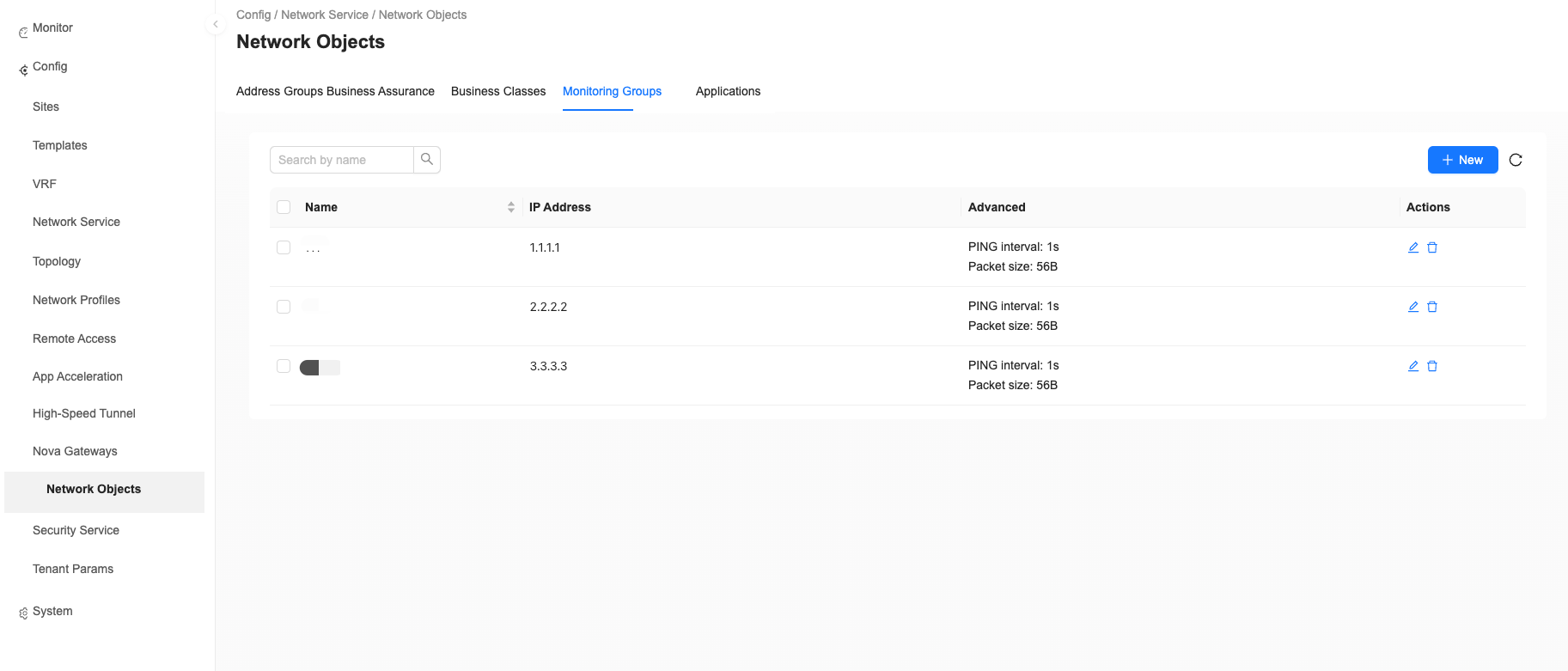
The Monitoring Group configured here can be referenced in WAN Configuration to monitor WAN connectivity.
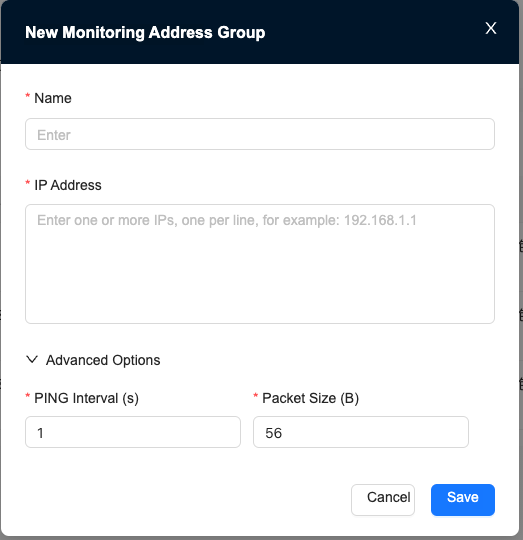
Create a Monitoring Group
Click New and fill in the addresses.
Delete a Monitoring Group
Click the Delete icon in the Operation column and confirm.
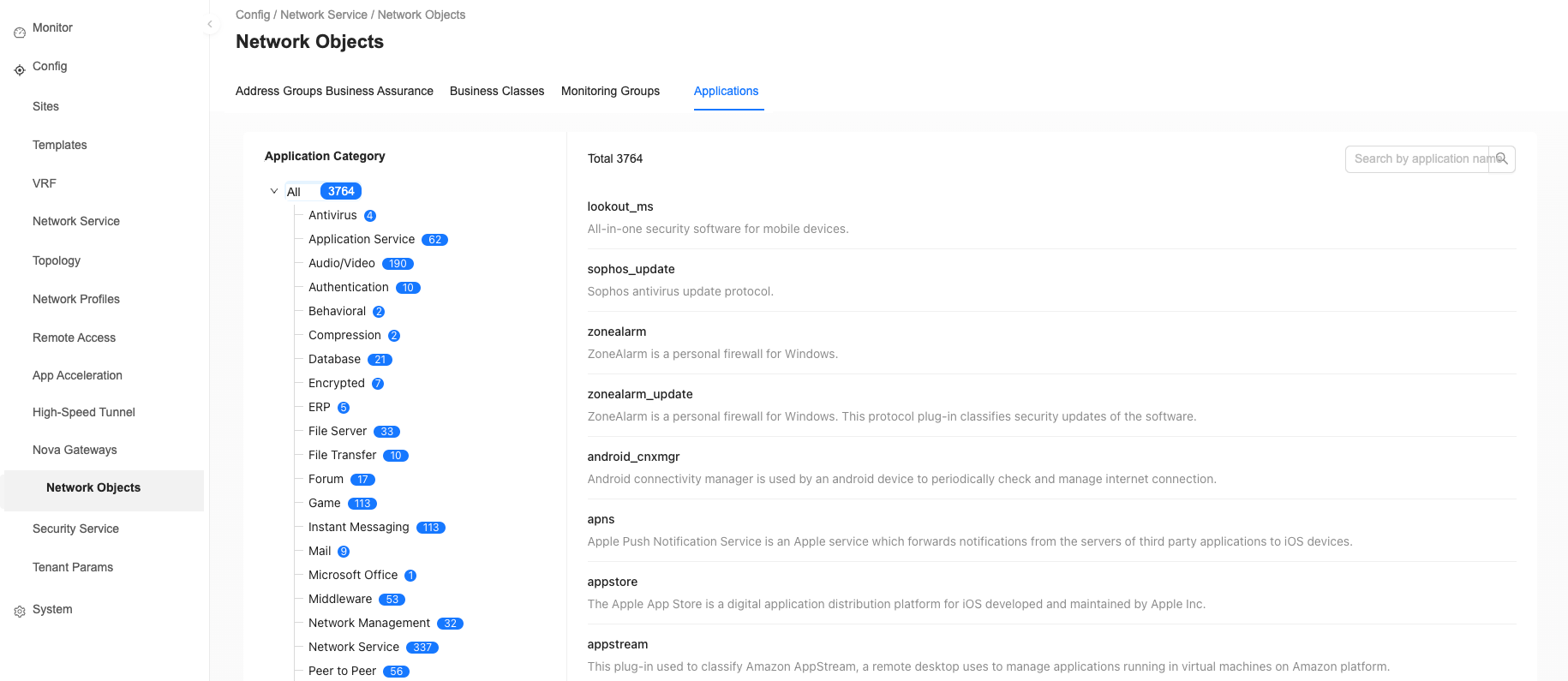
Applications
Schedules
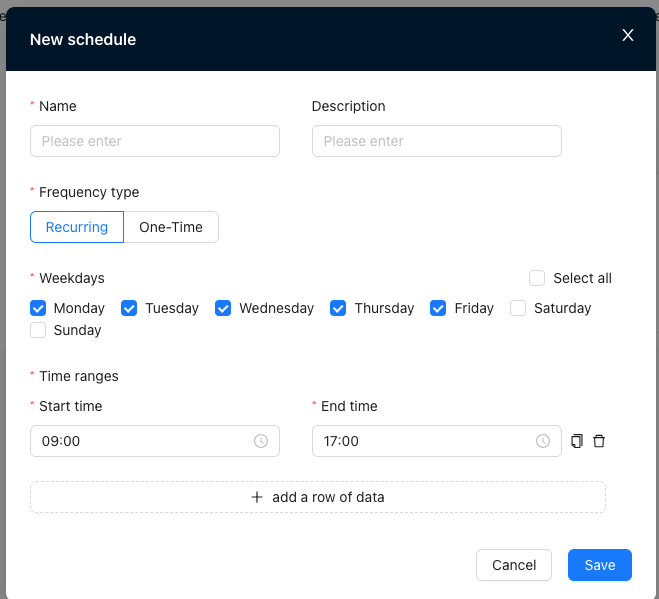
Business Policy, ACL firewall, and application firewall support scheduling. The policy is enabled according to the referenced schedule object.
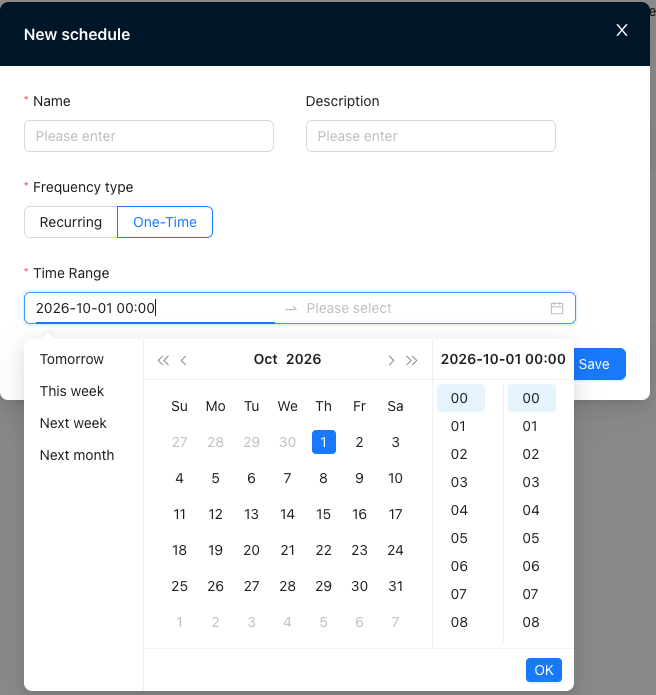
"Tenant"→"Config"→"Network Service"→"Network Objects"→"Schedules"→"New"
One-Time Schedule
Enabled only within the configured absolute time range.
Recurring Schedule
Schedule repeatedly in a specific time range per weekdays. Multiple time ranges can be added.
Delete a Schedule
Click the Delete icon in the Operation column and confirm.
Traffic Labels
"Tenant"→"Config"→"Network Service"→"Network Objects"→"Traffic Labels"
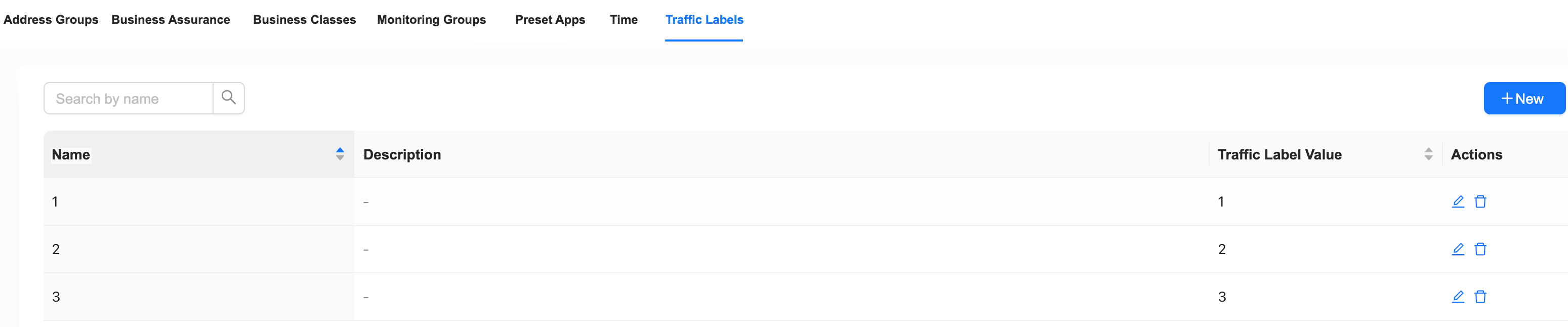
Traffic Labels are used to mark specific traffic so that it can be identified and processed in subsequent policies.
Create a Traffic Label
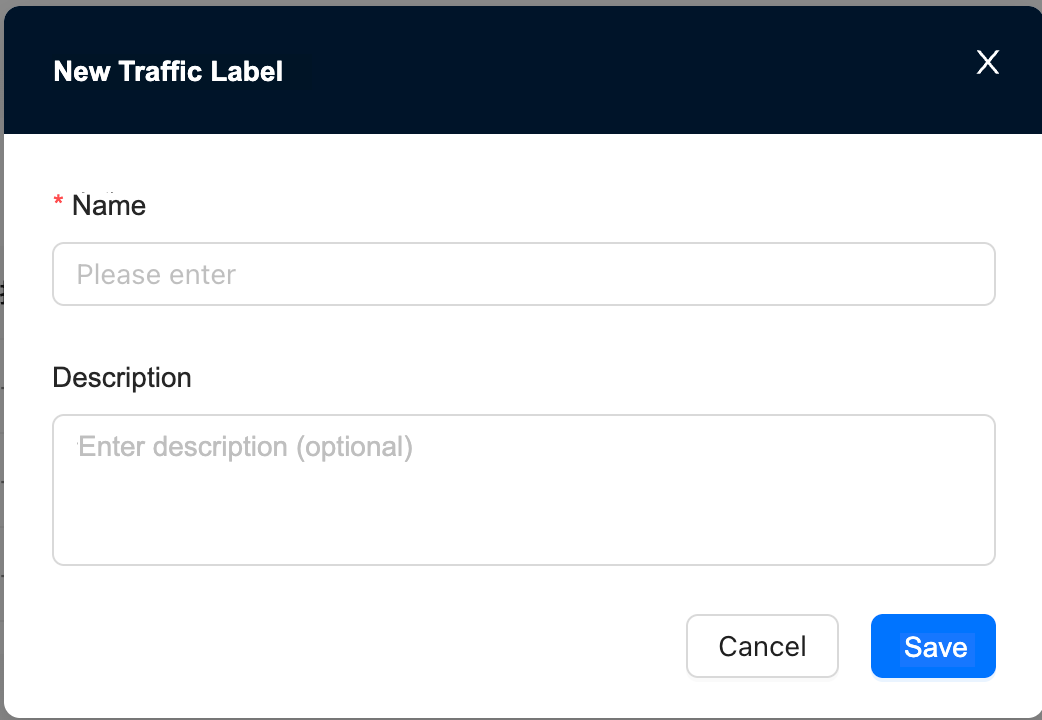
- Click New.
- Enter the Name. The traffic tag value is automatically generated by the system.
- (Optional) Enter a Description.
- Click Save.
Delete a Traffic Label
Click the Delete icon in the Operation column and confirm.
Traffic label cannot be deleted when still referenced.