Security Service hit statistics
info
- Function: Query/clear the hit number of a certain rule of the Security Service
- Security services include: security policy, address blacklist, address whitelist, domain name blacklist, domain name whitelist, and batch black IP blocking
- Supported by device version 6.4.0 and above
Query/clear the cumulative hit count of security services
info
- Interface entry: Diagnosis, Security Instance Diagnosis
Hit count query
tip
- In this example, to query the number of hits, use the diagnostic interface
- Site configuration security policy: policy111, url filtering configuration referenced in the security policy: url111
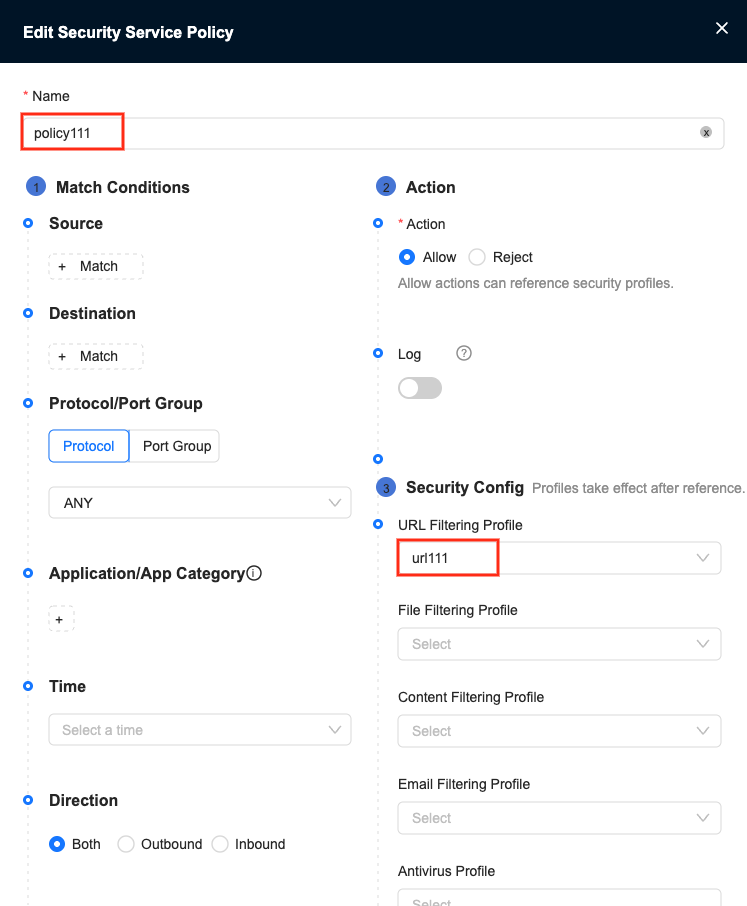
Security Policy
2.url filtering configuration: url category: Internet portal, behavior: blocking
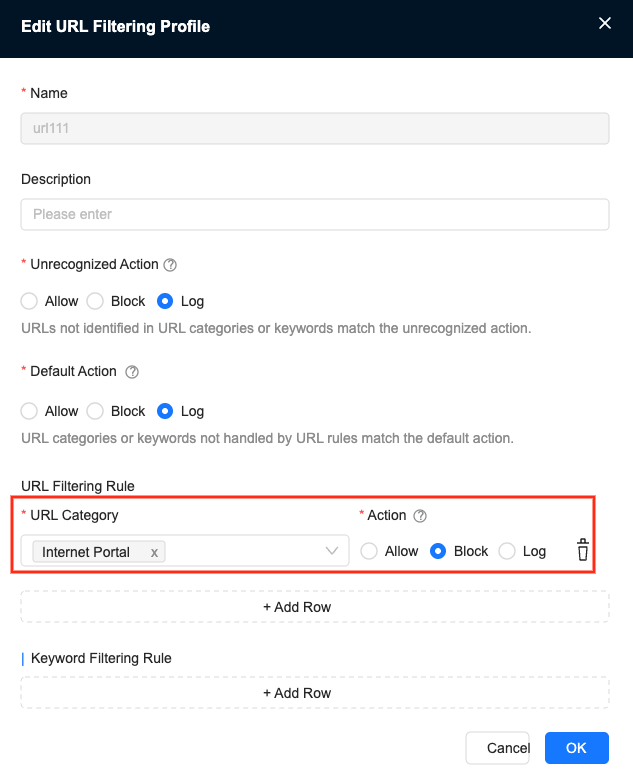
url filtering configuration
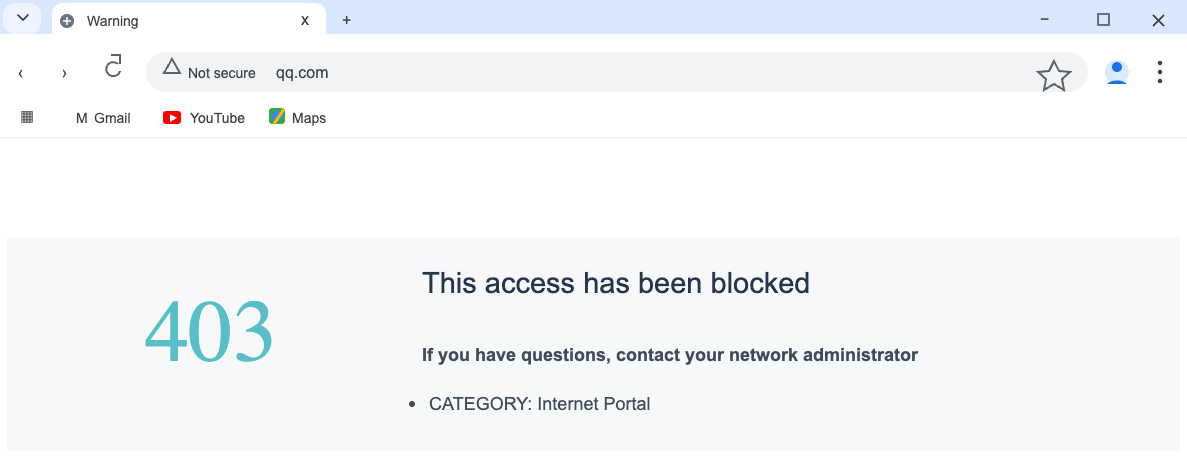
- Trigger security policy hit:
Under the host of the site, access qq.com (qq.com belongs to the URL category: Internet portal), and hits the URL filtering configuration under the security policy, so the access is blocked.
- Enter: Monitoring-Site Details-Operation and Maintenance-Diagnosis
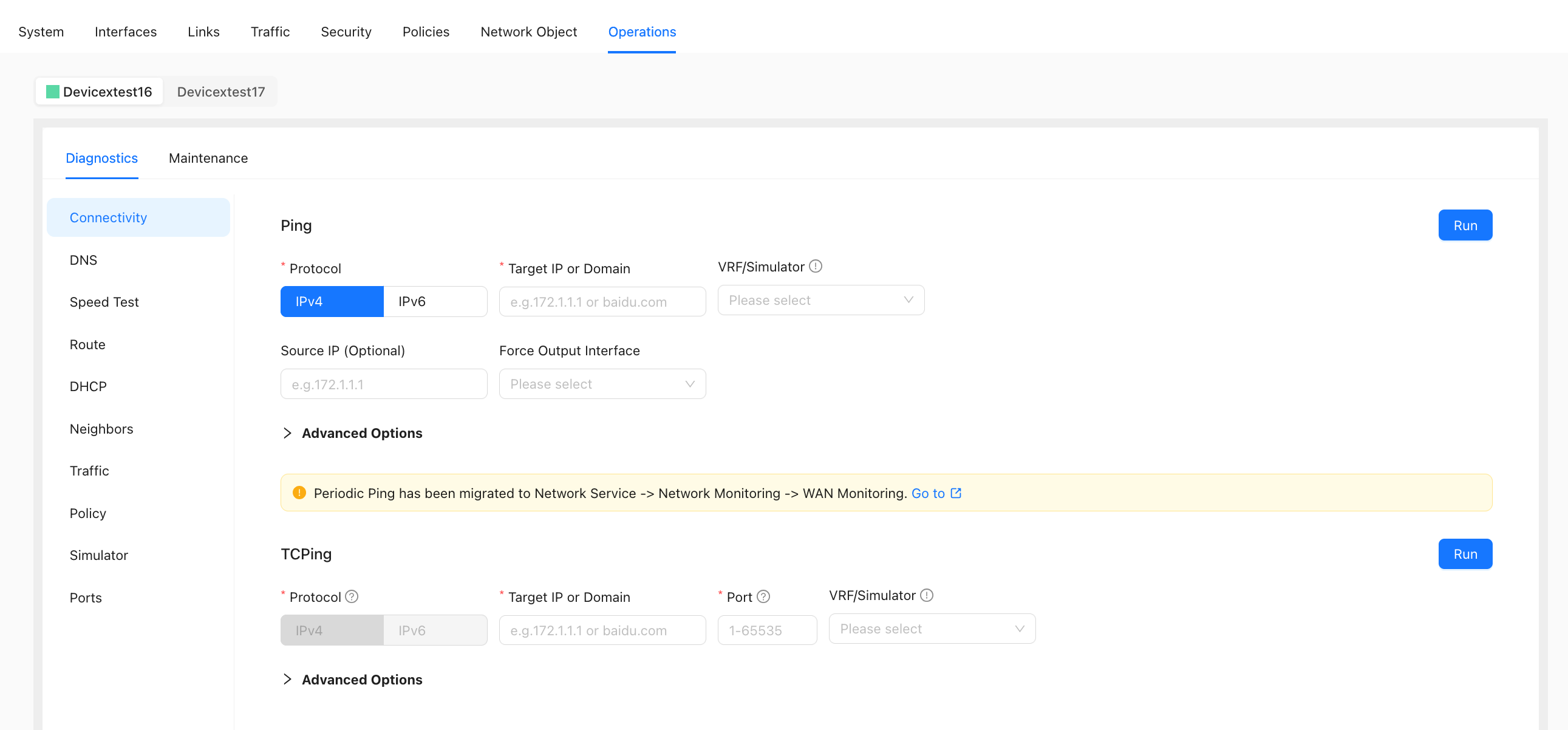
- Policy Hit Count - Security Service Hit Count area, "Security Service" selection: Security Policy, select the corresponding VRF, and then click "Run"
Security policy: "policy111" hit count can be queried
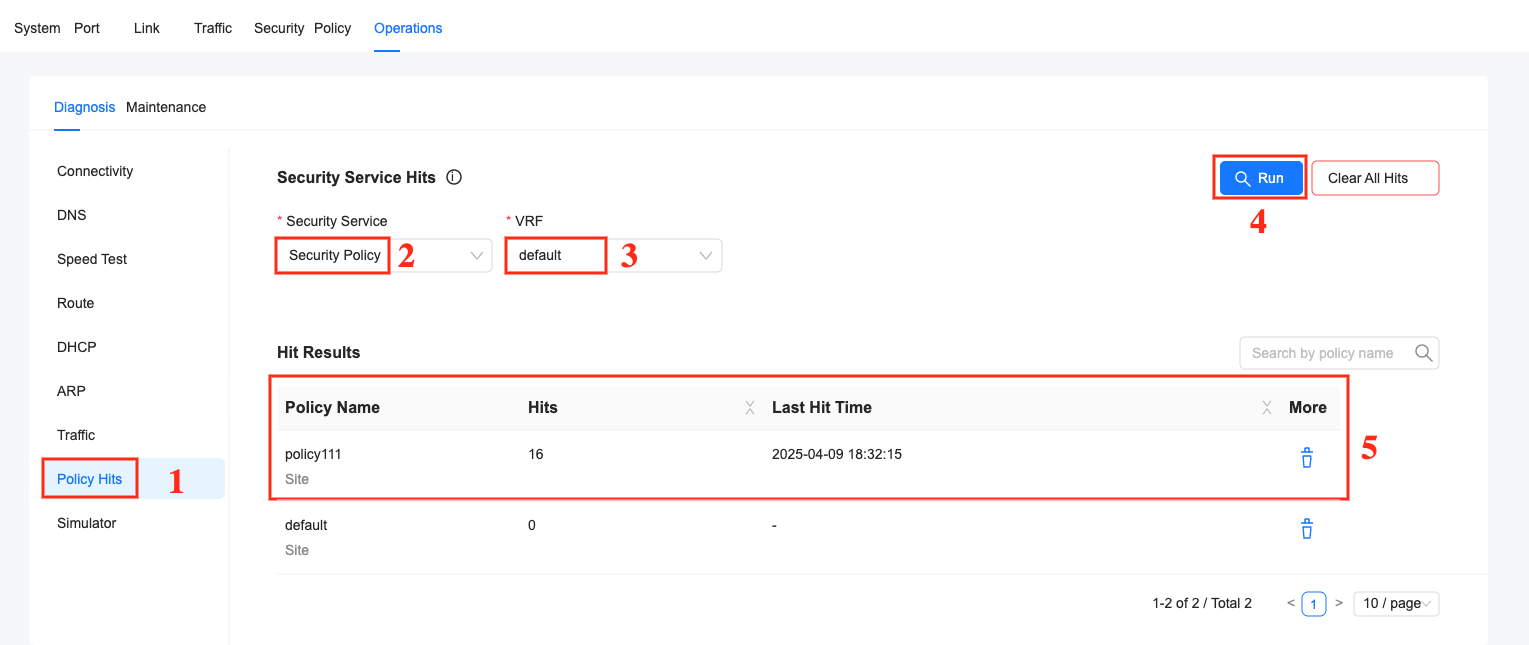
Clear the specified number of hits
tip
- In this example, the number of hits is cleared and the safe instance diagnostic interface is used.
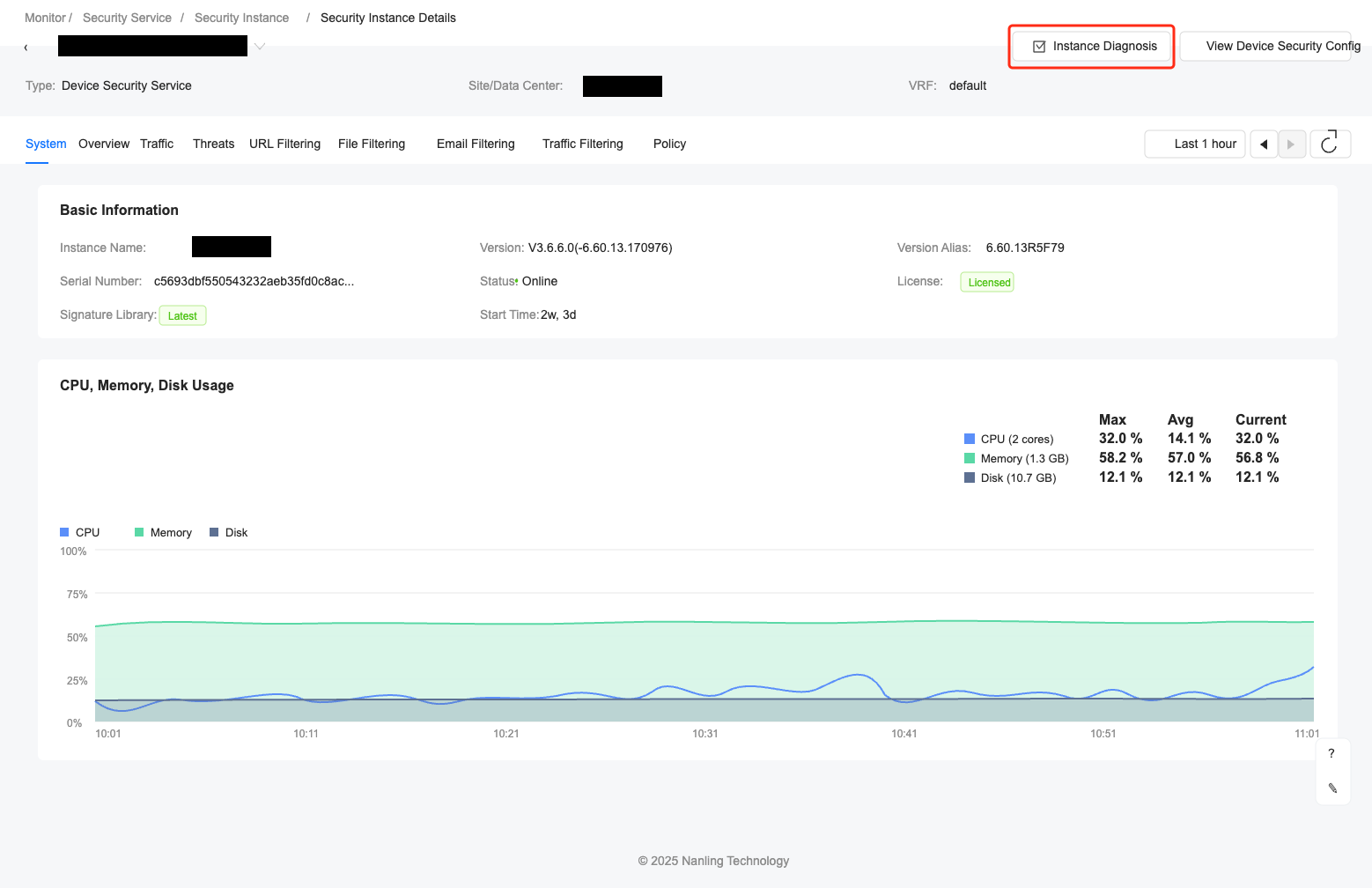
- Enter: Monitoring-Security Service-Security Instance, click on the corresponding device sn to enter the security instance details interface
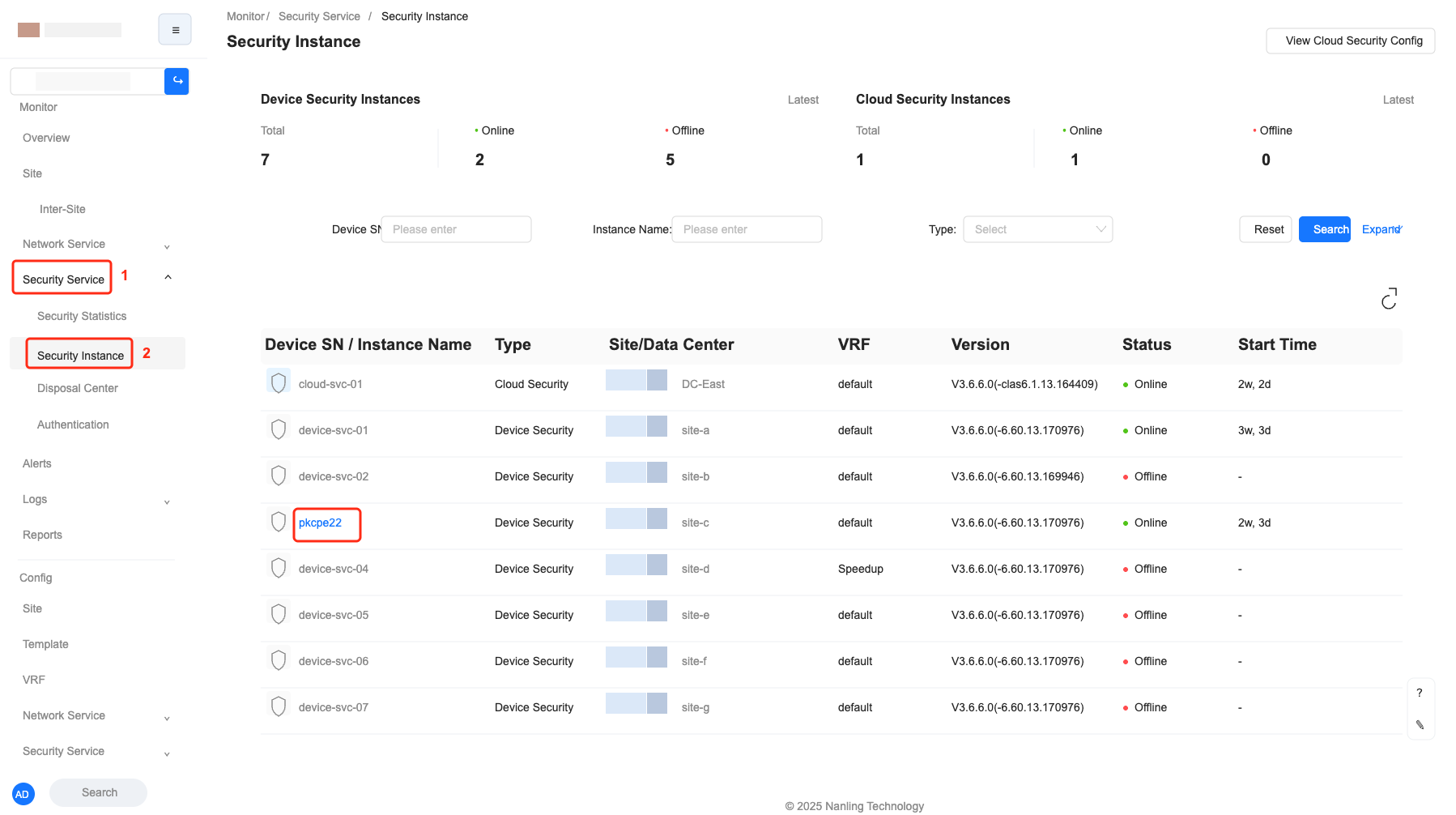
- In the security instance details interface, click "Security Instance Diagnosis" to enter the security instance diagnosis interface.
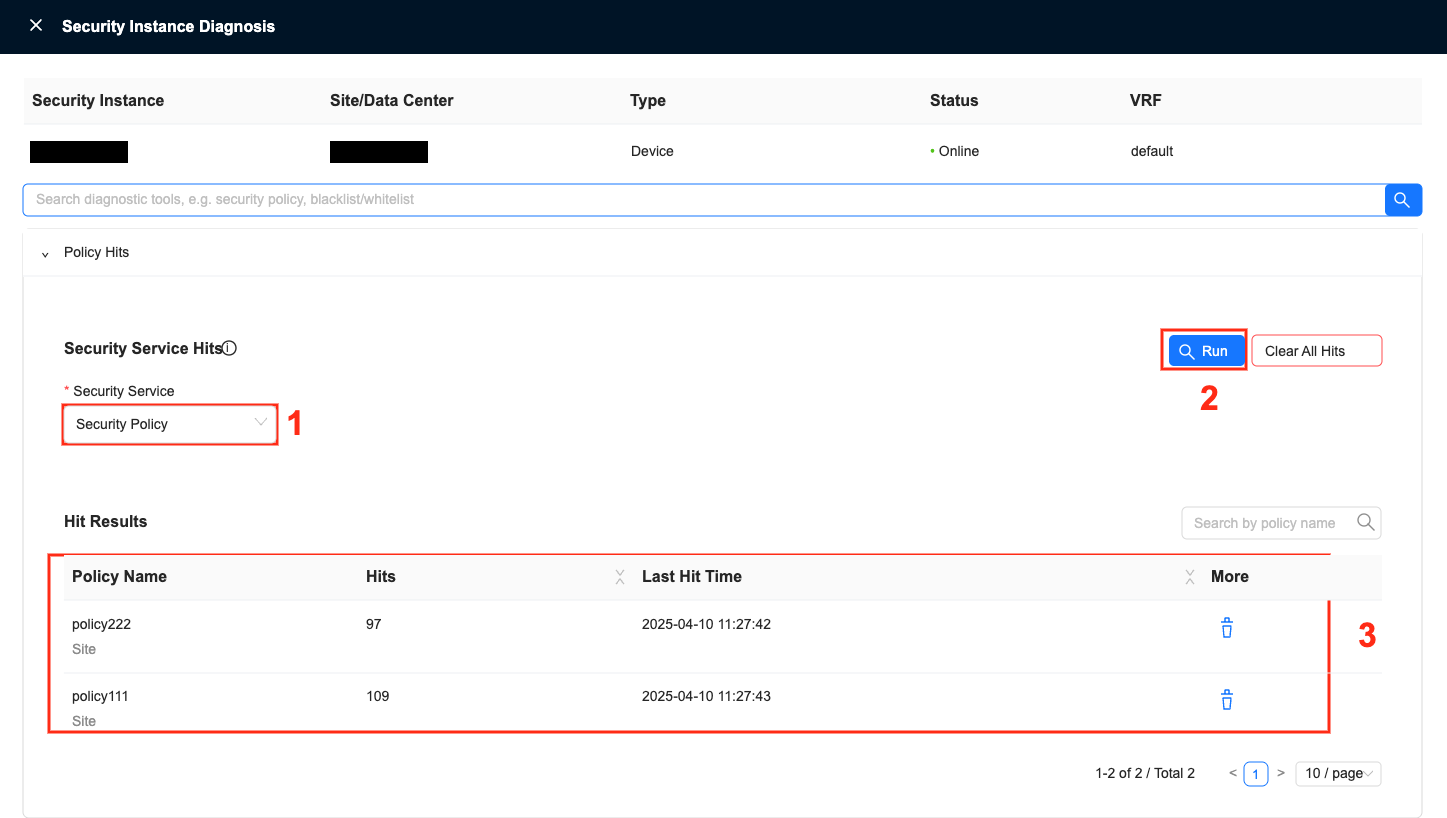
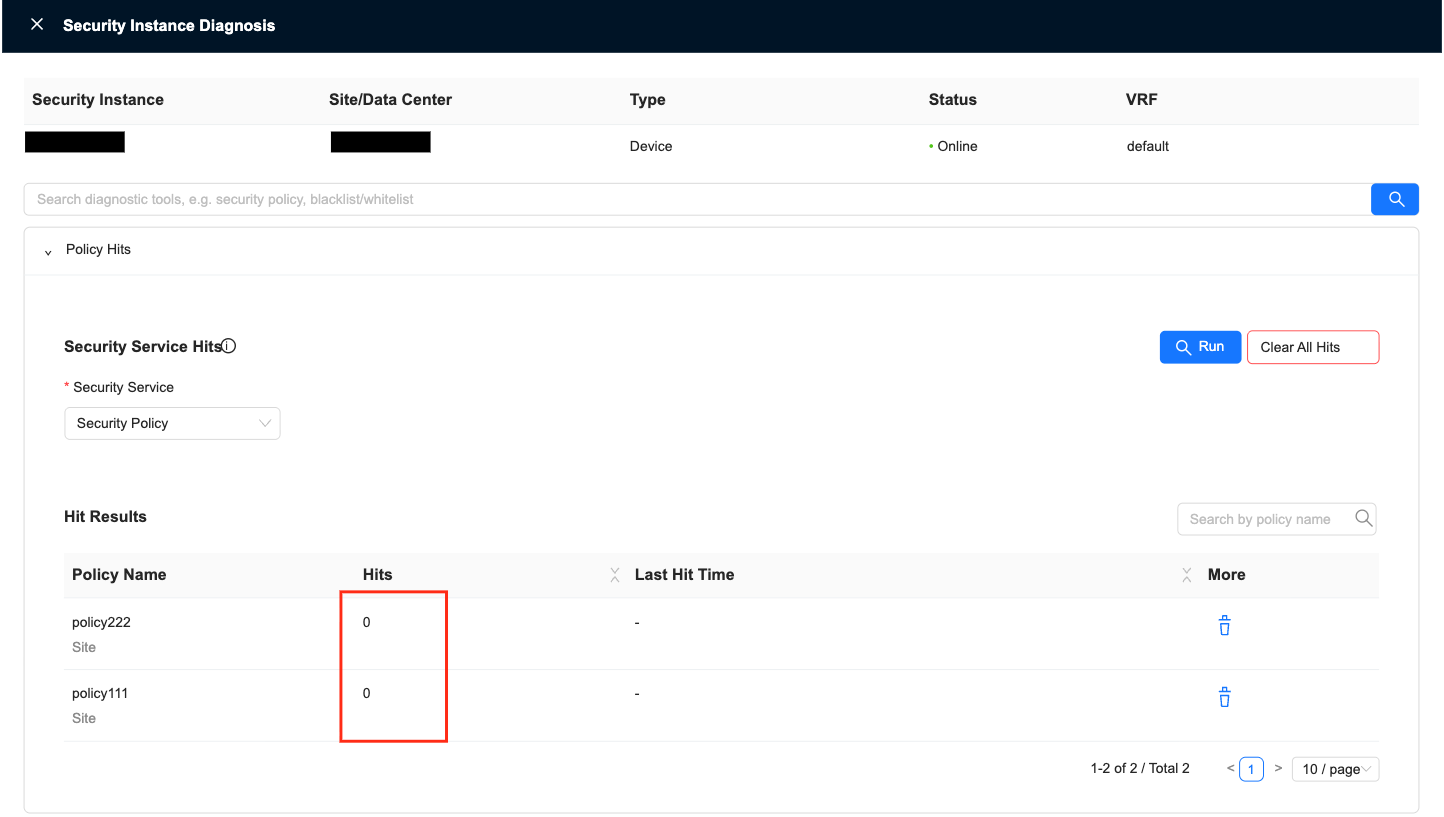
- Policy Hit Count - Security Service Hit Count area, select "Security Service": Security Policy, and then click "Run"
The number of security policy hits can be queried
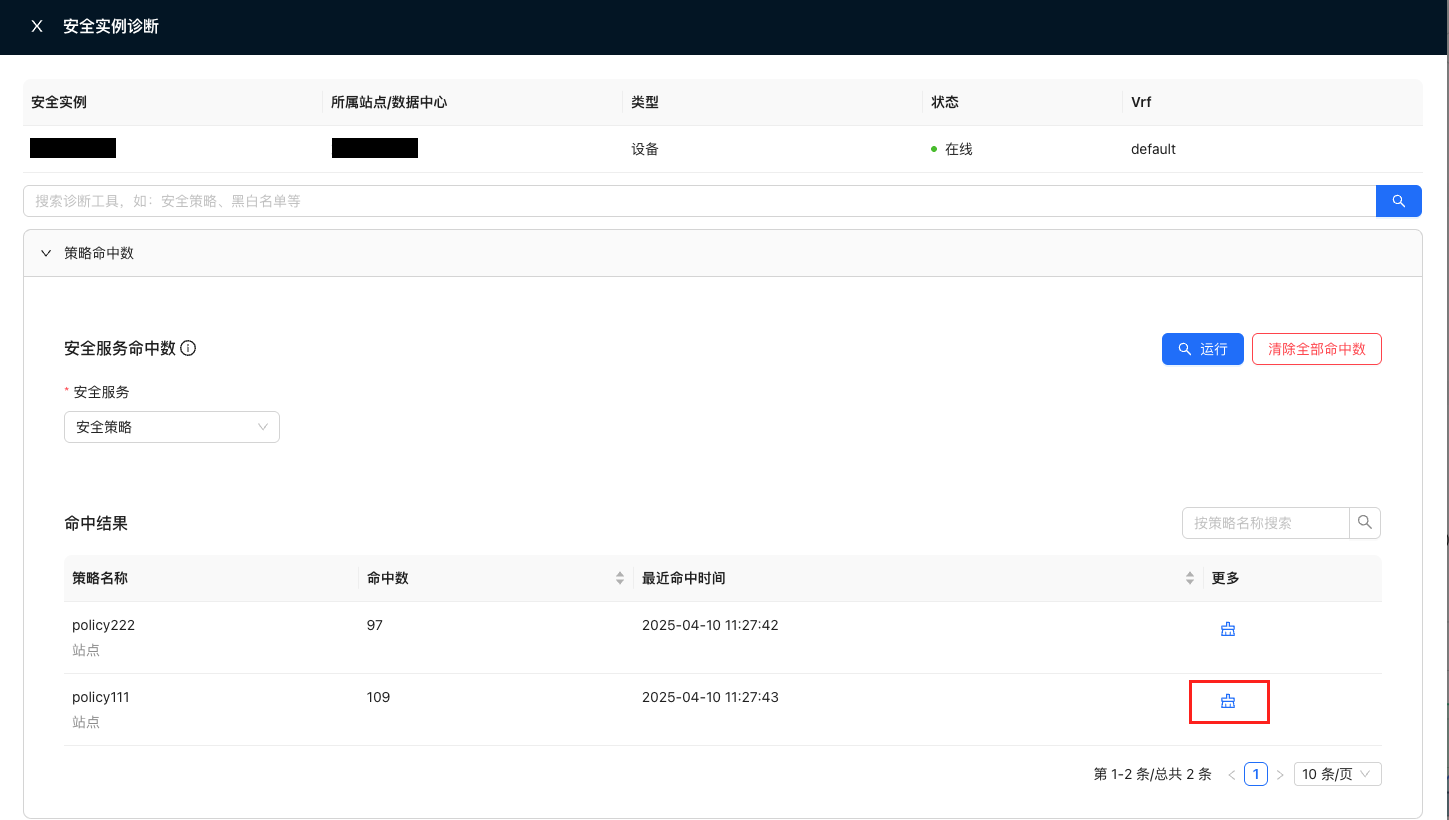
- Policy: "policy111" row, click the clear button
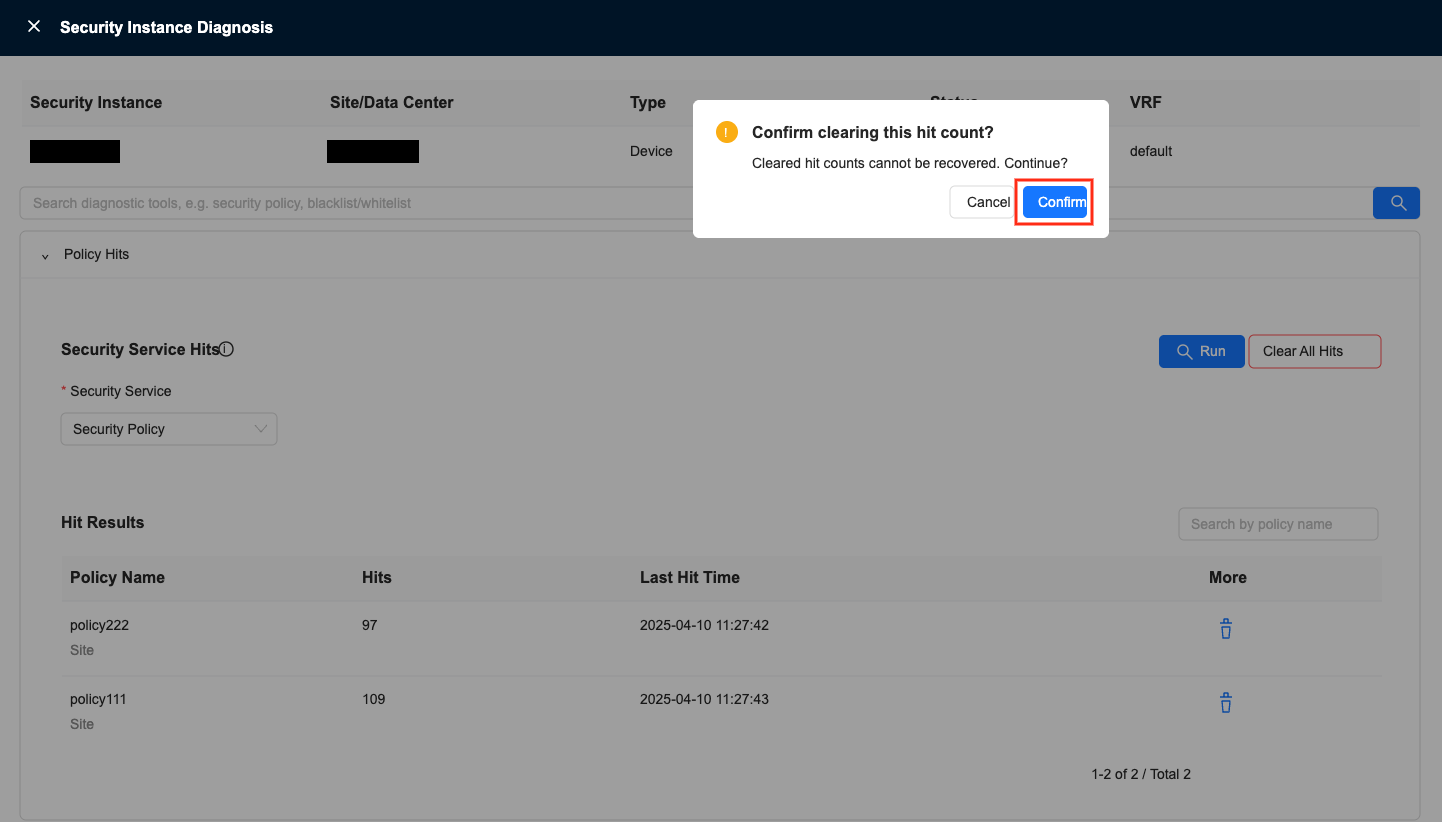
- A dialog box pops up, click "Confirm"
- Policy: "policy111" hit count successfully cleared
Clear all hits
tip
- In this example, the number of hits is cleared and the safe instance diagnostic interface is used.
- Enter: Monitoring-Security Service-Security Instance, click on the corresponding device sn to enter the security instance details interface
- In the security instance details interface, click "Security Instance Diagnosis" to enter the security instance diagnosis interface.
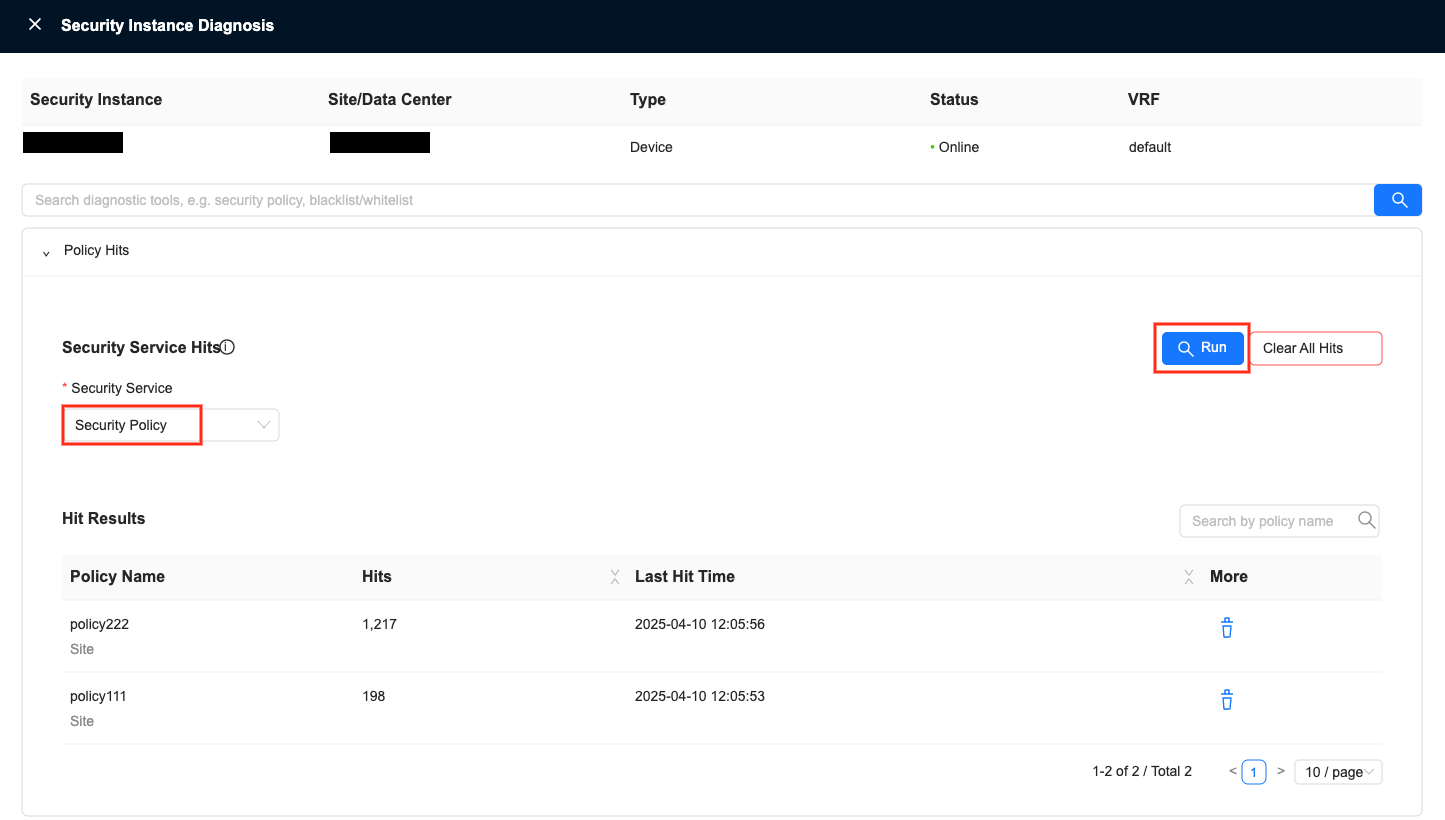
- Policy Hit Count - Security Service Hit Count area, select "Security Service": Security Policy, and then click "Run"
The number of security policy hits can be queried
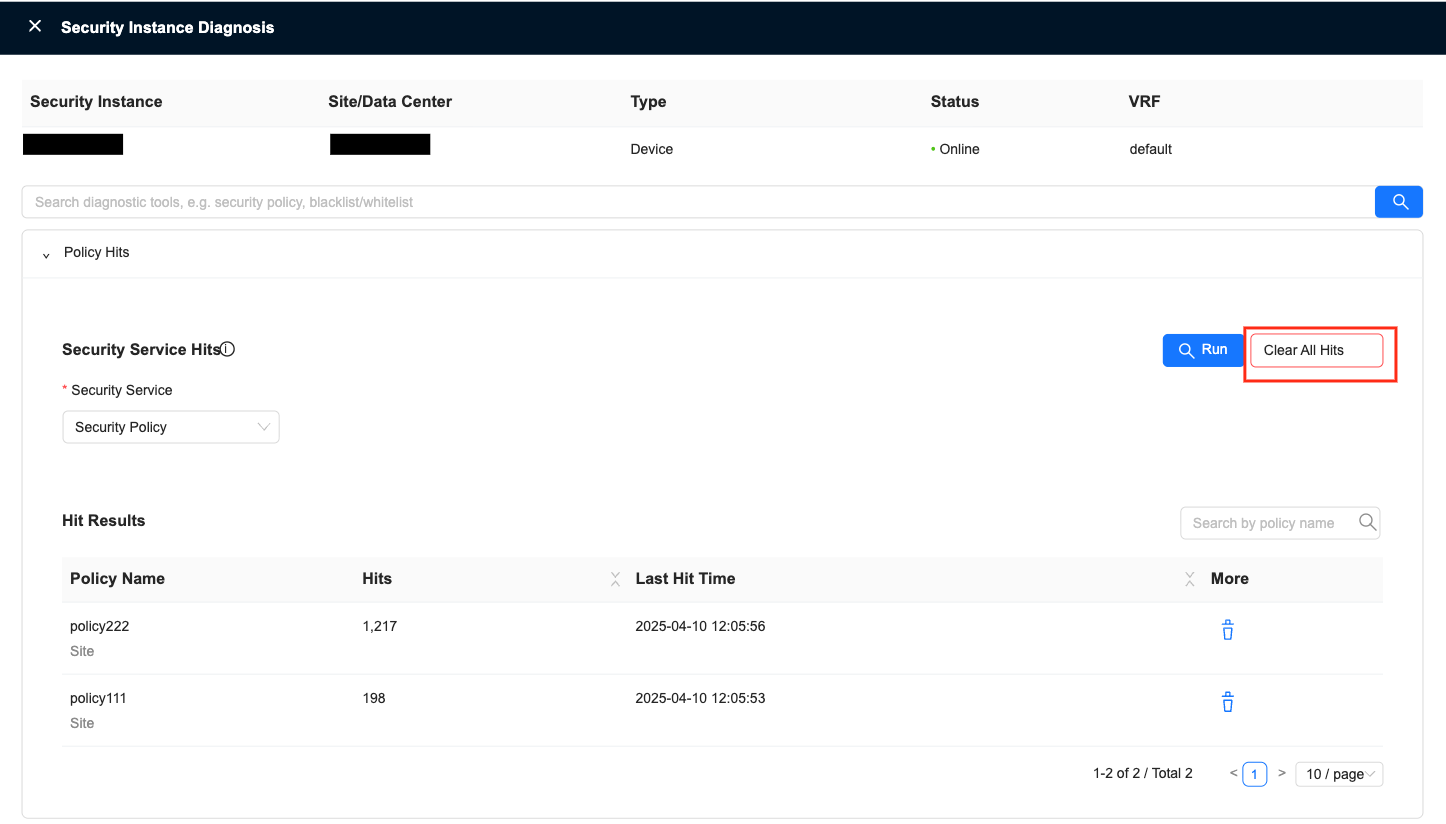
- Click "Clear All Hits"
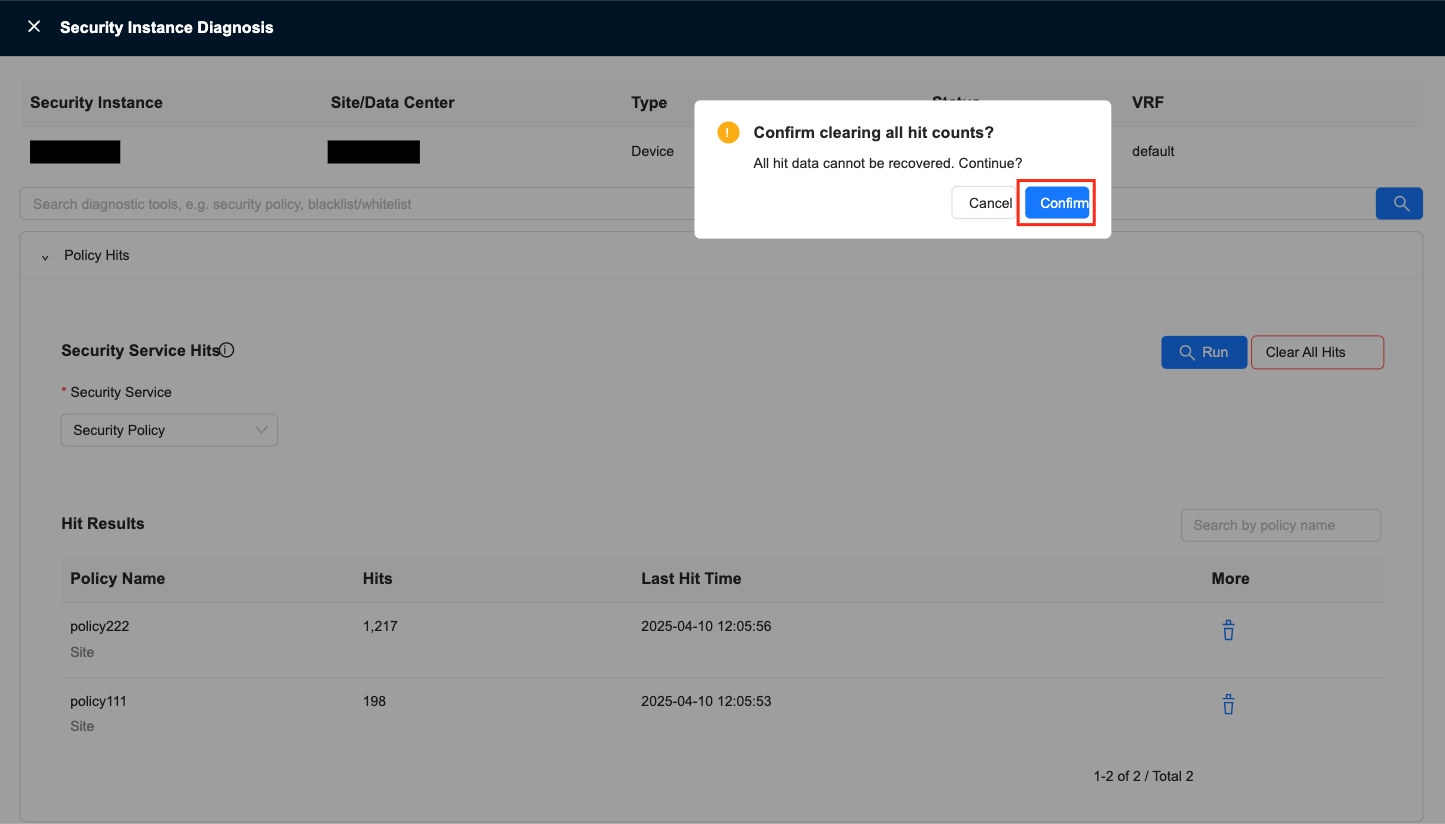
- A dialog box pops up, click "Confirm"
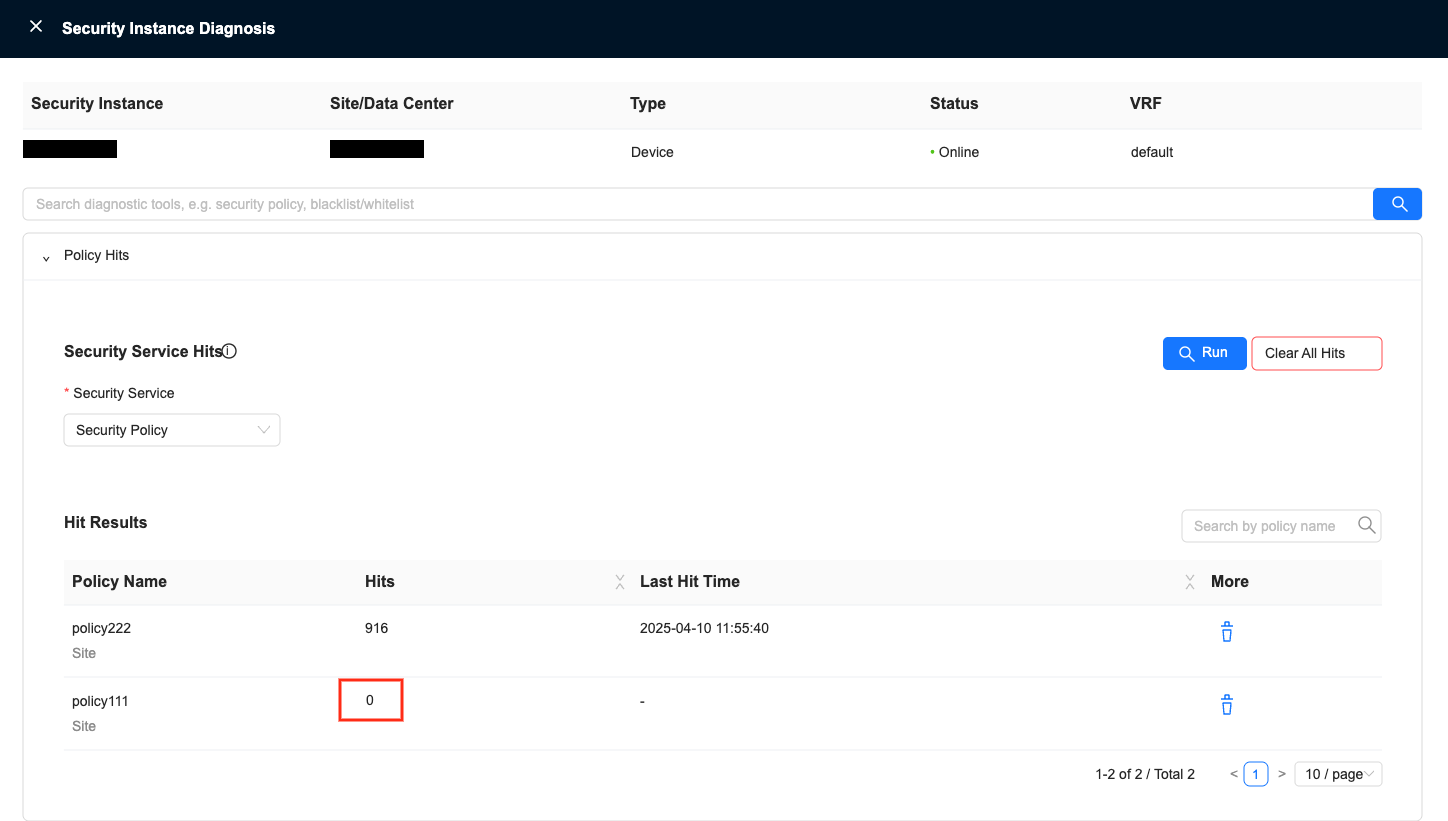
- All strategy hits are cleared successfully
Query the historical hit count of security policy
info
- Interface entrance: Site details, Security instance details
- Function: View the number of hits of the security policy at each point in time within the time range
- Only supports security policy
Instructions for use
tip
- In this example the site details interface is used
- Pre-trigger security policy hits
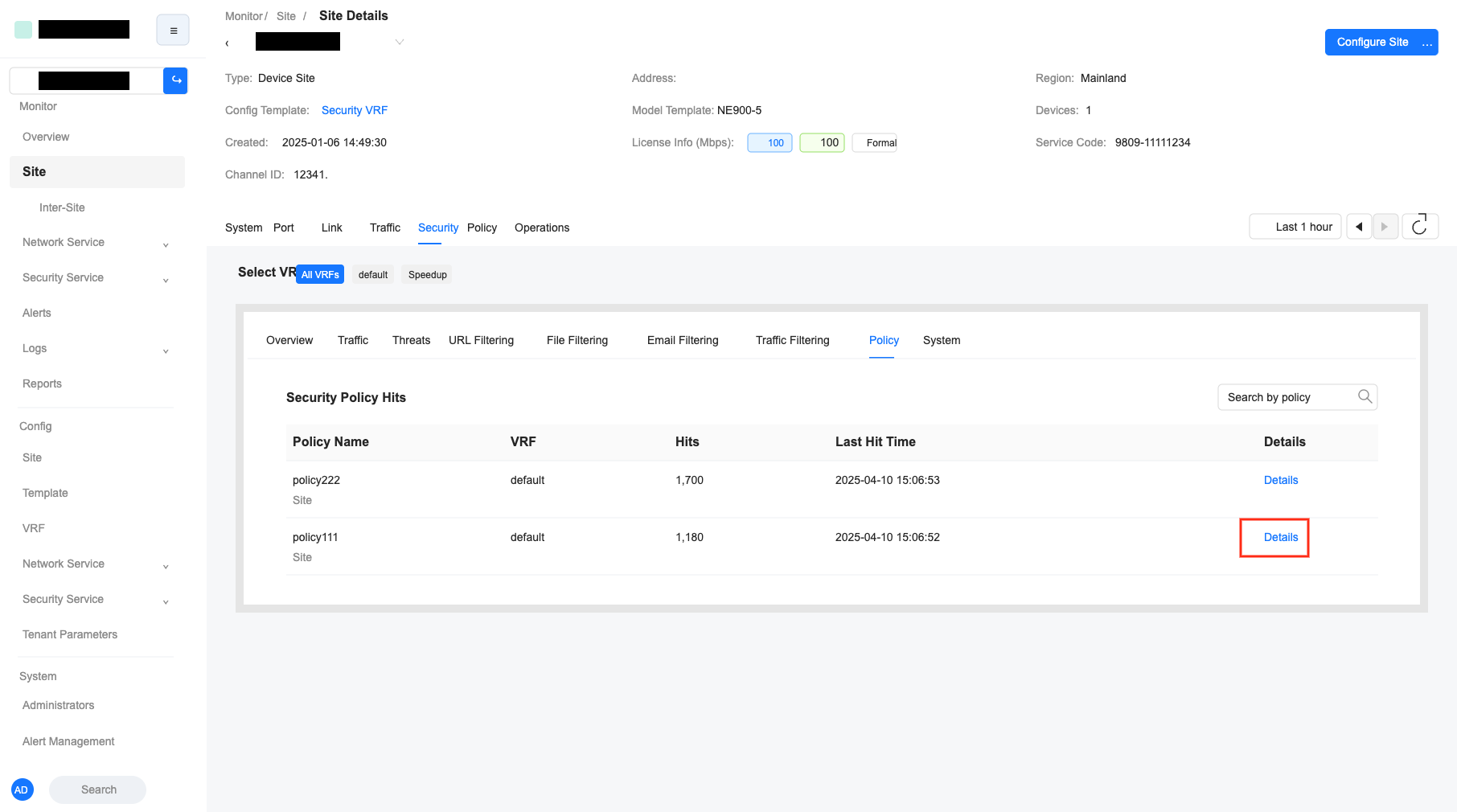
- Enter: Site Details-Security-Policy, "Security Policy Hit Count" area
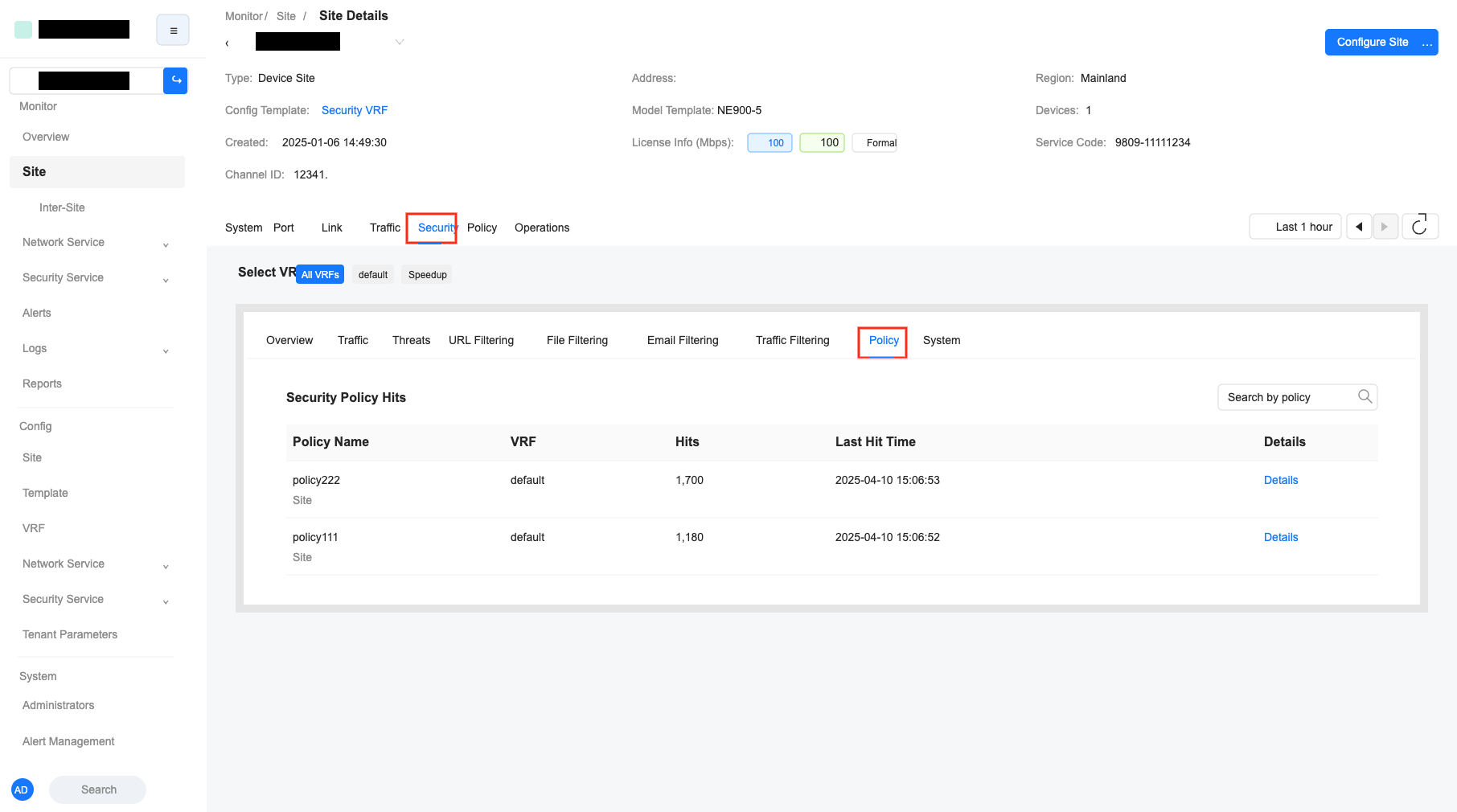
- Select VRF and time range to view security policy hit statistics, such as: number of hits within the time range and last hit time
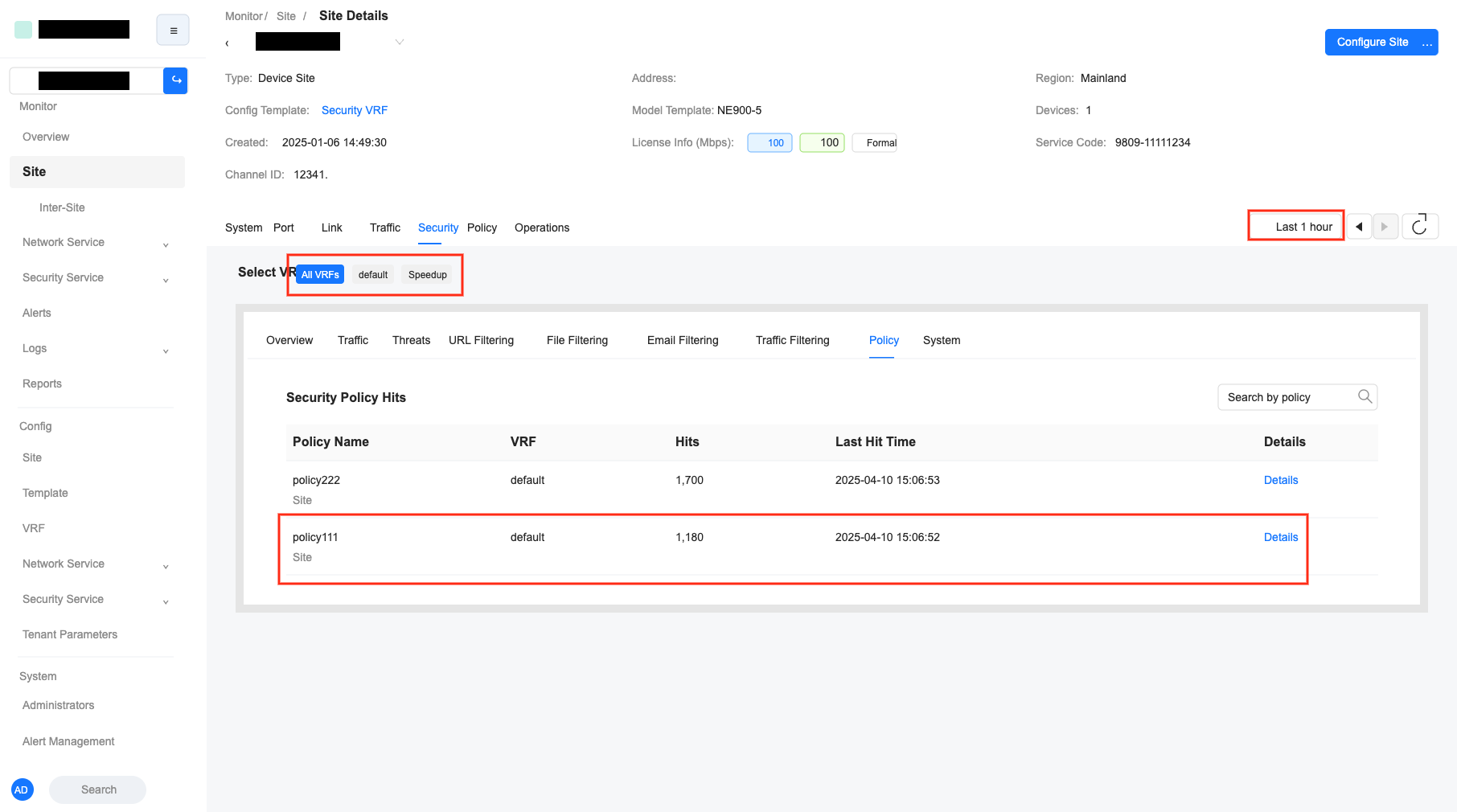
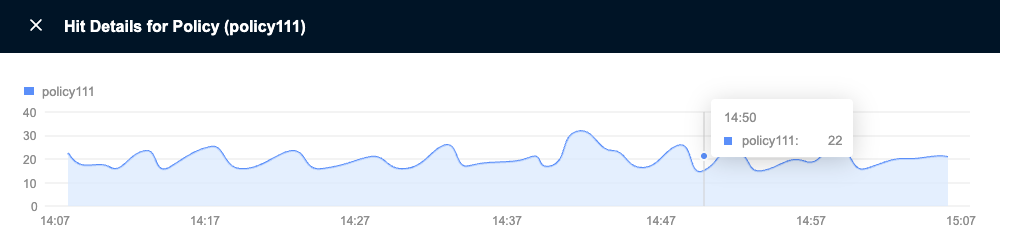
- Click "Details" to view the security policy and the number of hits at each time point.